View and toolbar
This menu item contains the default settings.
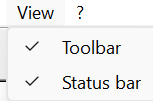
Function: Toggle the toolbar/status bar on or off.
Click the check mark to turn the toolbar/status bar on or off.
- Top toolbar:

The toolbar includes the functions from the drop-down menus, as well as a few additional features.
 - look at Print as BMP
- Zoom
 Function: Turn zoom on/off
Click the button once. It will then appear as follows: 
The zoom function is now enabled and can be used for the appearing crosshair to select a zoom area. This area will now be zoomed in.
This step can be repeated multiple times.
When used in combination with this feature, the button  Restore. This restores the previous zoom level, such as the full view.
After setting the desired zoom level, click the magnifying lens again to exit the command.
- Full screen

The form is displayed so that it fits entirely within the project window.
- Original size

The project form is displayed on the screen in its original size (paper size).
- Redraw

When using the scroll bar on the right or bottom edge of the screen, the graphic may not be rendered accurately while the zoom function is active.
To redraw the selected section of the graphic in the current zoom mode, this menu option can be used.
- Change output language of report
 .
.
After calling the function, the following window appears:
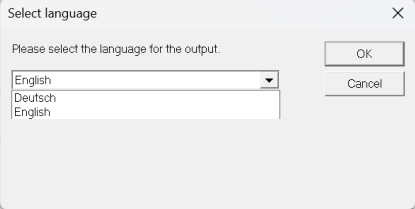
Select the language and click OK.
The language will change immediately.
- Switch pages
Depending on whether the user is on the first page, the last page, or somewhere in between,
the following buttons will be visible or not.
 First page: <Ctrl + Pos 1> (Keyboard)
 Previous page: <Ctrl + Page up> (Keyboard)
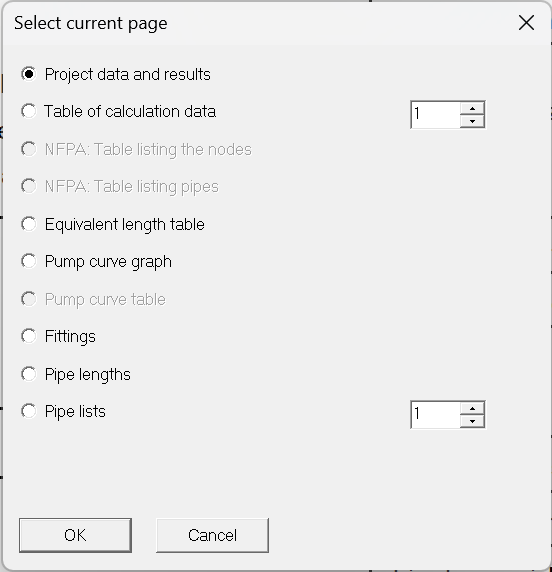
 Select the current page based on the preset output pages
A dialog box will appear. Select the page to view directly.
 Next page: “Ctrl + Page Down” keyboard shortcut
 Last page: “Ctrl + End” keyboard shortcut
- Search for nodes
 Function: Search for node numbers in the calculation document.
Click the icon. The following dialog box appears:
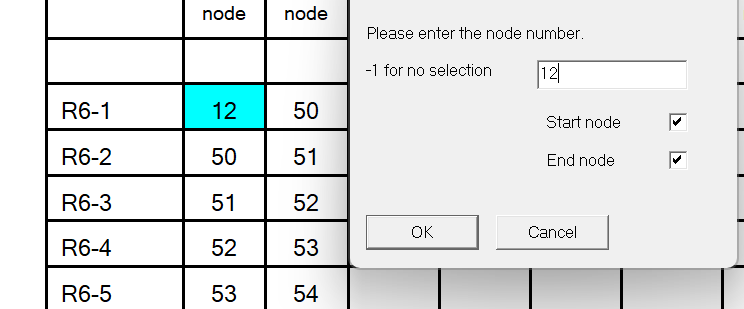
The node numbers are highlighted in light blue. If the number 12 appears multiple times in the document, these arrows in the toolbar will be highlighted in blue, indicating that they are active:

Pressing the arrows automatically scrolls through the document and searches again for node number 12; for example, in the case of a T-fitting, there would be three of them.
Depending on where the user is, the corresponding buttons become visible.
- Recalculation

Function: Recalculate the hydraulic calculation within the calculation program.
It is always advisable to select this menu item when changes have been made to the input data—for example, a different pump—and the user wishes to review the result.
- Program info/Help - Vertical toolbar

 look Print
 Export to Excel, but only specific pipe lists and tables from the report

 Edit Company name for report
 Edit Pump

 Import of configuration files
 Export of configuration files
 Settings Report
 Set Output pages for report
 Function: Help
 IDAT Homepage
 Function: Information about the program version.