Fittings
Function: Management of pipe inner diameters used by DN value/material and equivalent lengths of fittings and components that must be included in the calculation.
See also Calculate coefficients. (Calculation Type: Variable Viscosity)
The first column contains the DN value, which then applies to each column.
The “Diameter” column corresponds to the inner diameter of the pipe corresponding to the DN value in the pipe quality shown here in the example: DIN EN 10220/10255 welded.
That means: The outer diameter of the pipe minus twice the wall thickness equals the inner diameter.
The following applies to this table:
Threaded pipe up to DN25 (DIN EN 10255)
Grooved pipe, welded from DN32 (DIN EN 10217) onward, as standard in sprinkler technology.
The greater the wall thickness of the pipe, the smaller the diameter becomes, which has implications for the hydraulic calculation.
For individual pipes or piping systems, material-specific tables can now also be assigned in IDAT’s sprinkler calculation programs, e.g. Aquatherm Red Pipe. Therefore, material-specific tables are also listed here.
IDAT provides some tables in advance.
Nevertheless, always check the tables against possible manufacturer specifications!
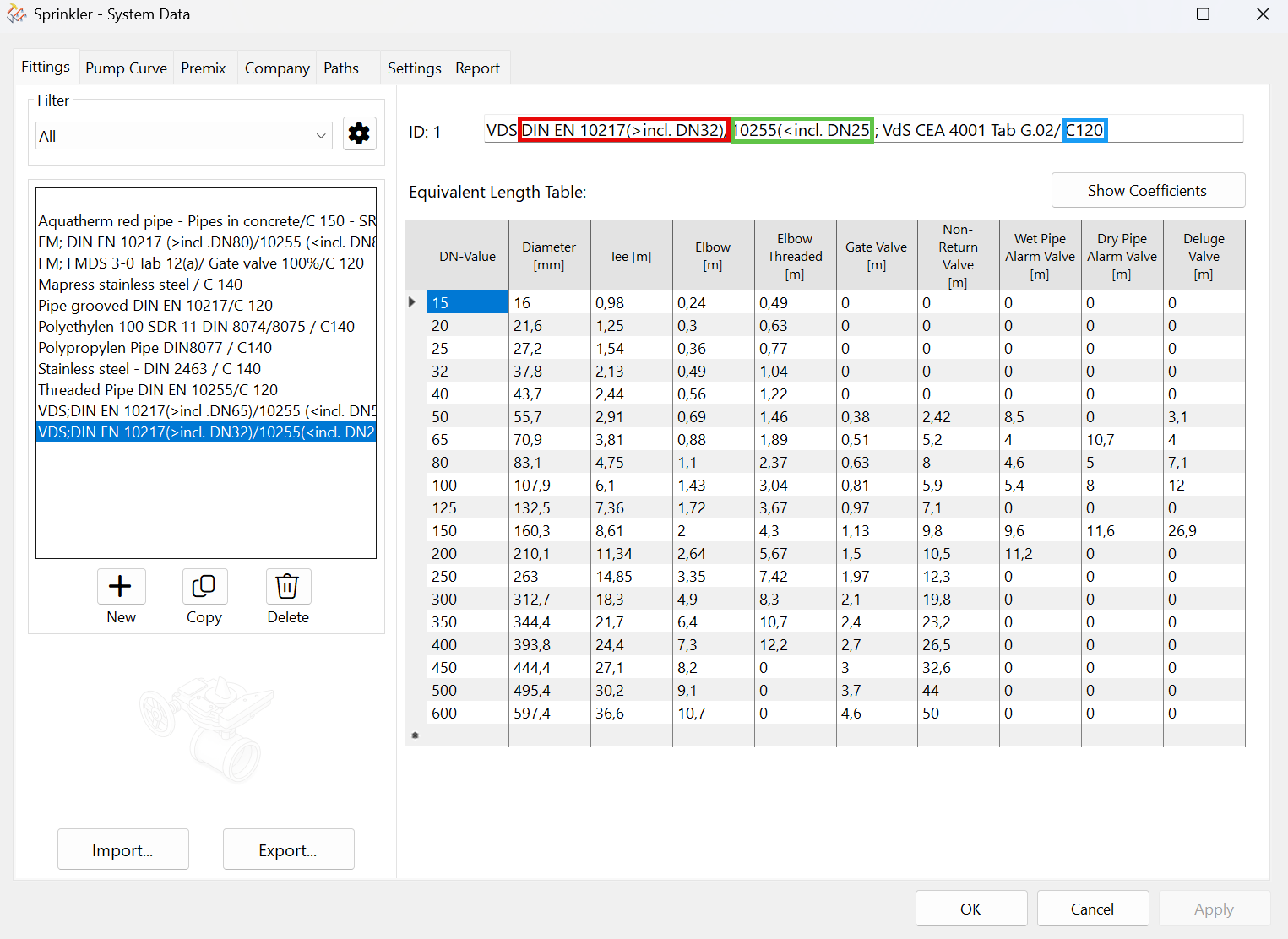
Tables can be given individual names.
The equivalent lengths of Tees, elbows, and elbows threaded are taken from Table G.02 in VdS CEA 4001, Appendix G. Other equivalent lengths of the components can be found in the manufacturer’s documentation of the component.
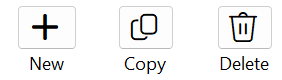
The following functions can be used to add, copy, or delete entire tables.
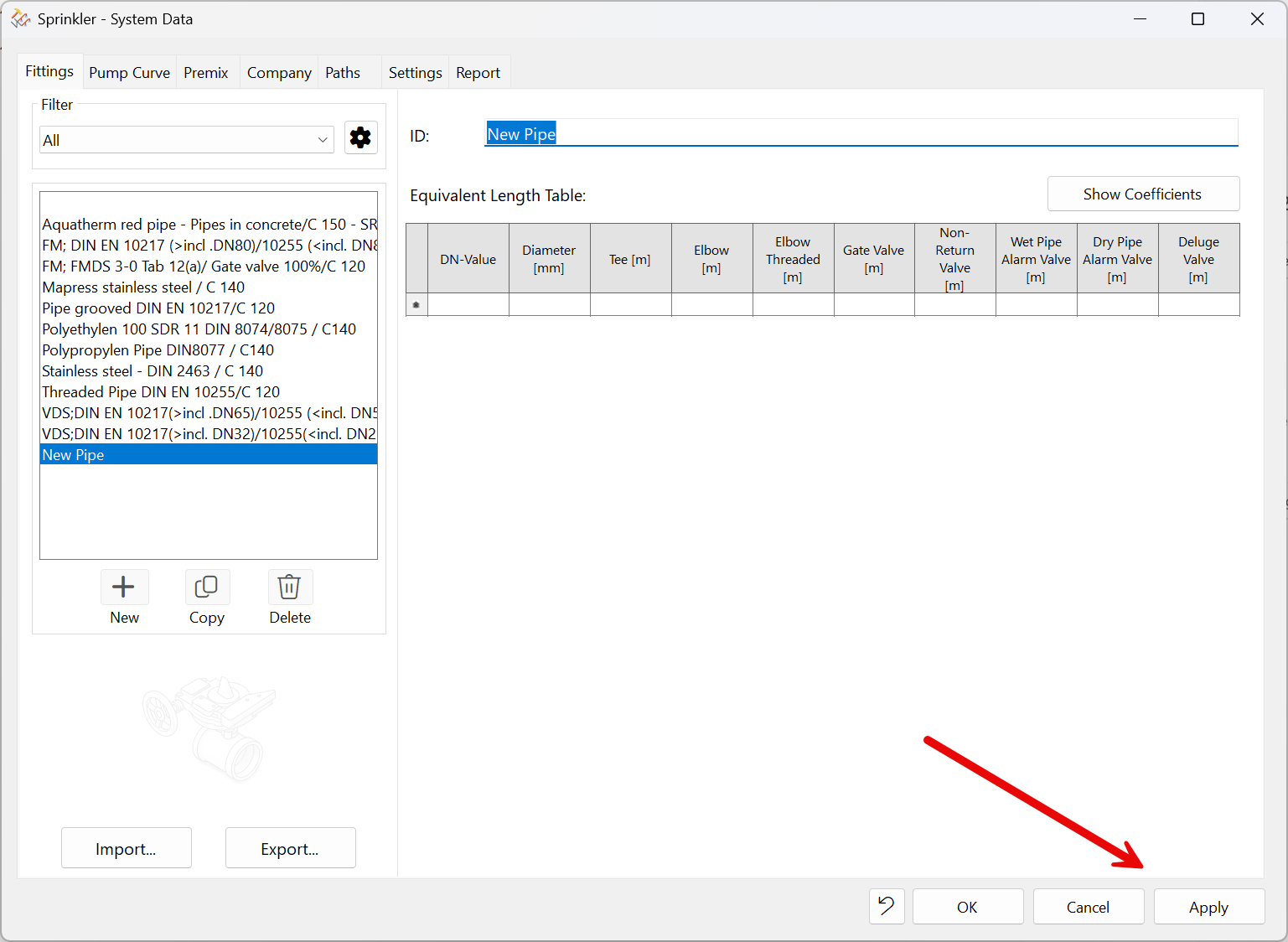
When creating new tables or making changes to existing tables, you must always click the “Apply” button before switching to another table.
Otherwise, a warning message will appear. Values from other tables can be copied and pasted using Ctrl+C and Ctrl+V, even across rows.
This icon also appears while editing  at the bottom of the dialog box. Any changes you've made can be undone immediately.
Filters can be set for the tables.
Selecting “All”, displays all of them. Custom filters can be set as well.
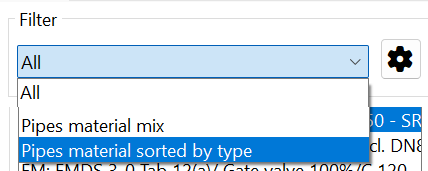
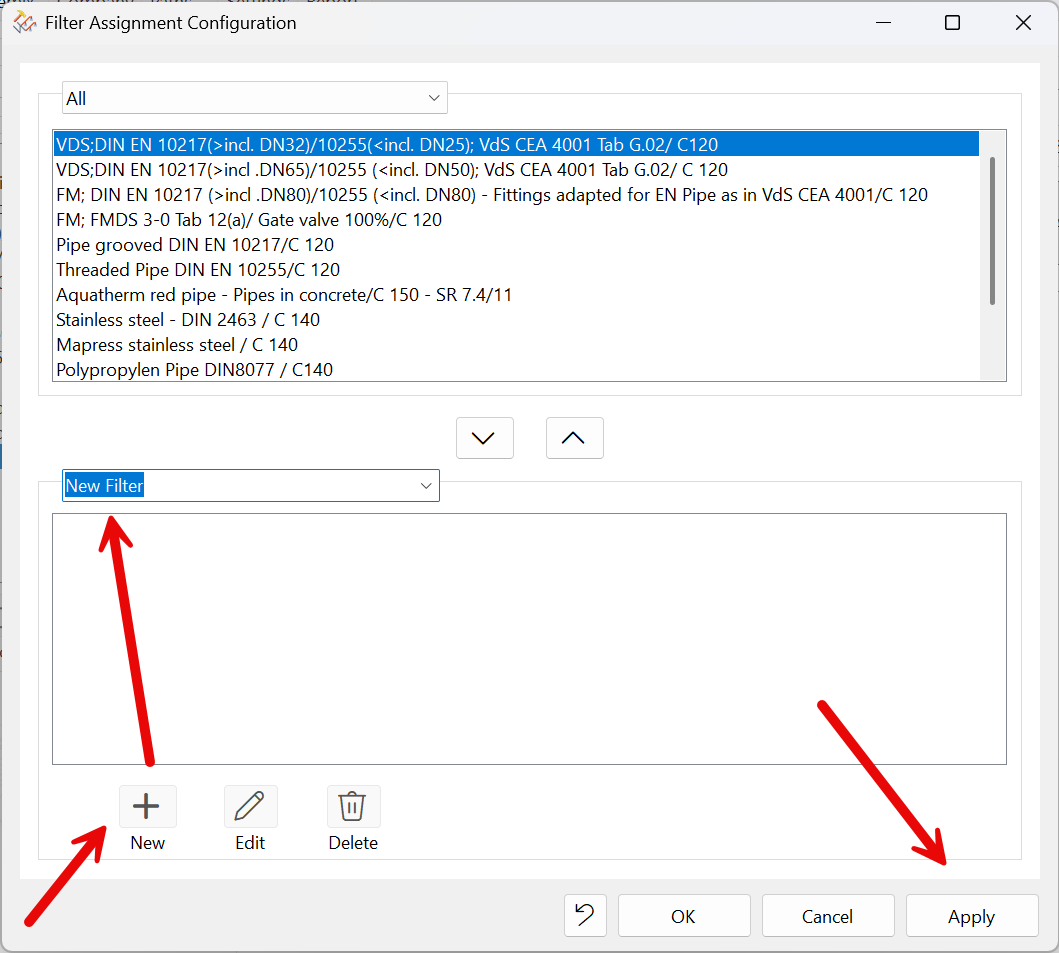
Create, edit, and delete filters by using the settings button  .
.
Up and Down arrows assign tables to filters or remove them. The filter can only be deleted once the table has been removed. Only one entry is possible per group. Use the New, Edit, or Delete buttons to create or modify filters as needed. The Edit button only changes the name of the filter.
Note: A newly created filter can only be created by clicking OK. Only after creating filters, the appropriate tables can be assigned to the group.
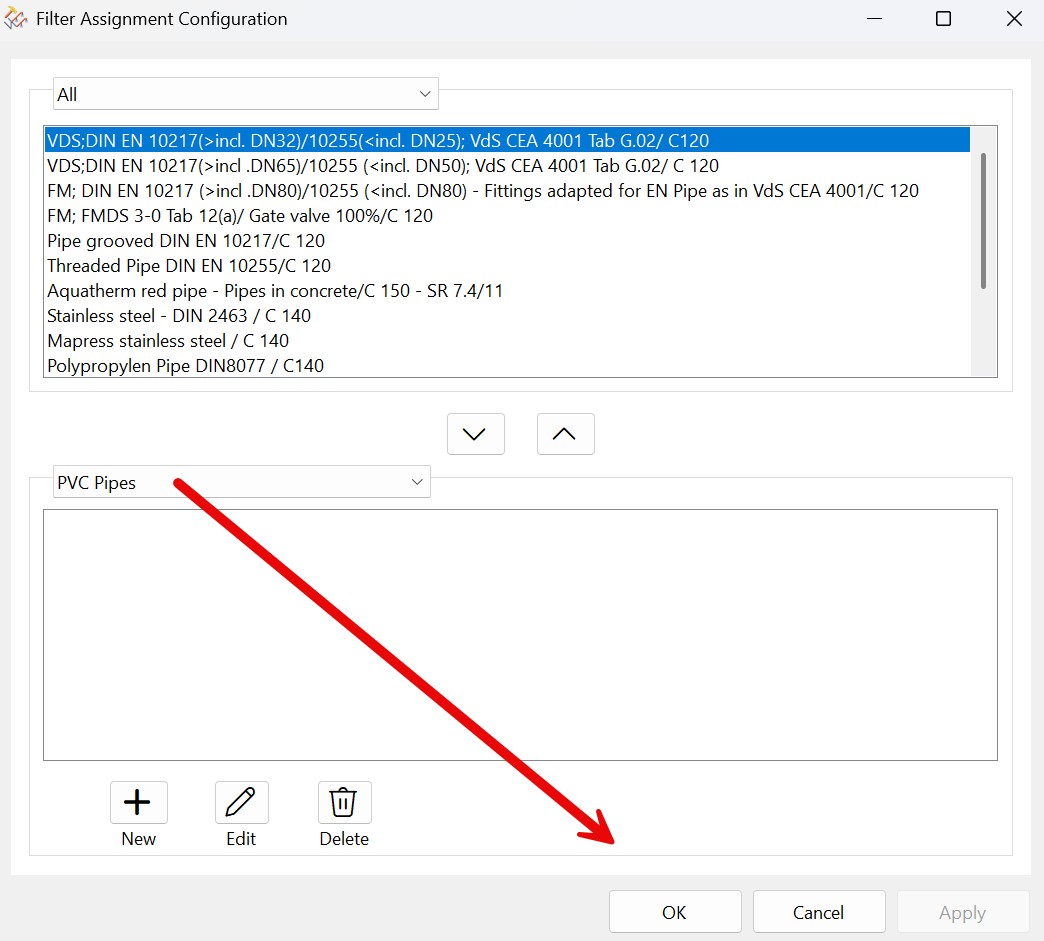
Once the new filter has been created, it will appear in the overview.
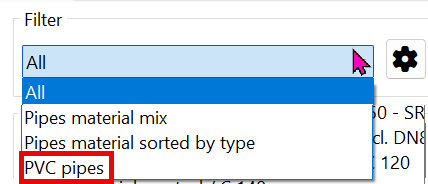
Click settings  and select the new filter. Assign the appropriate tables.
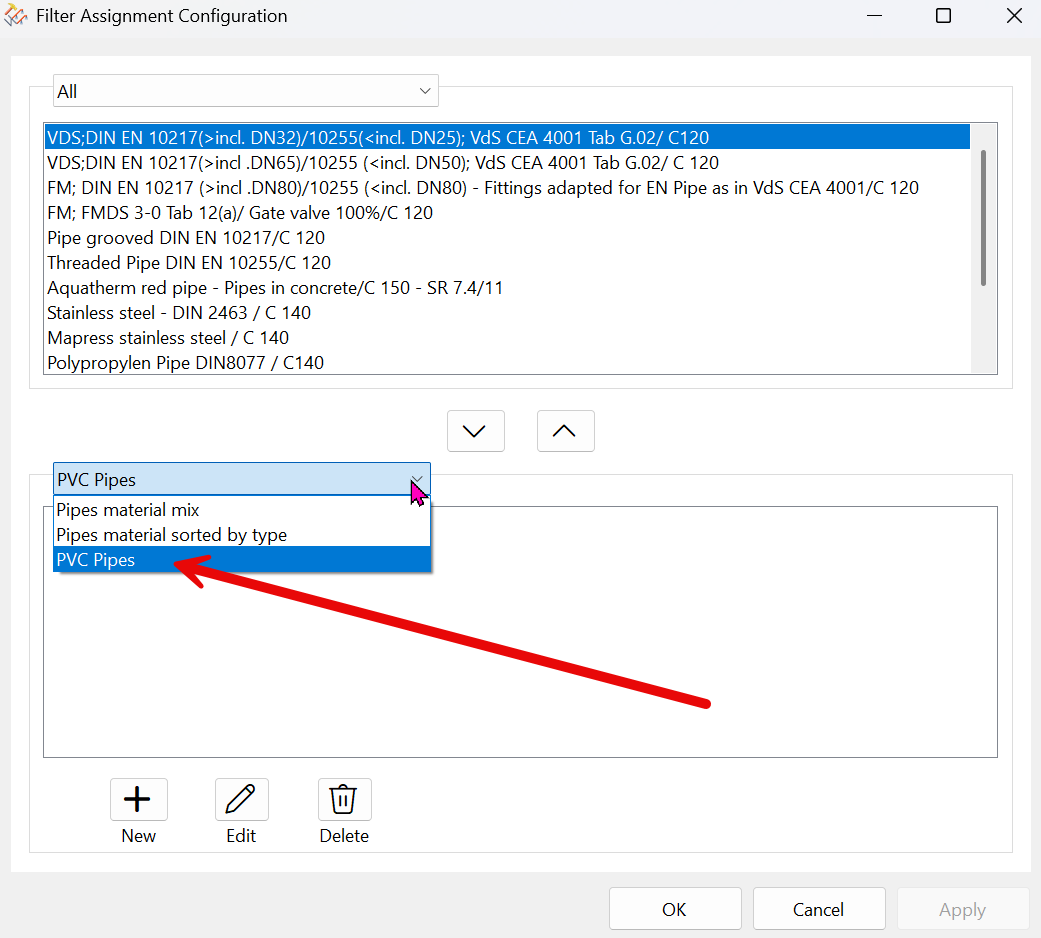
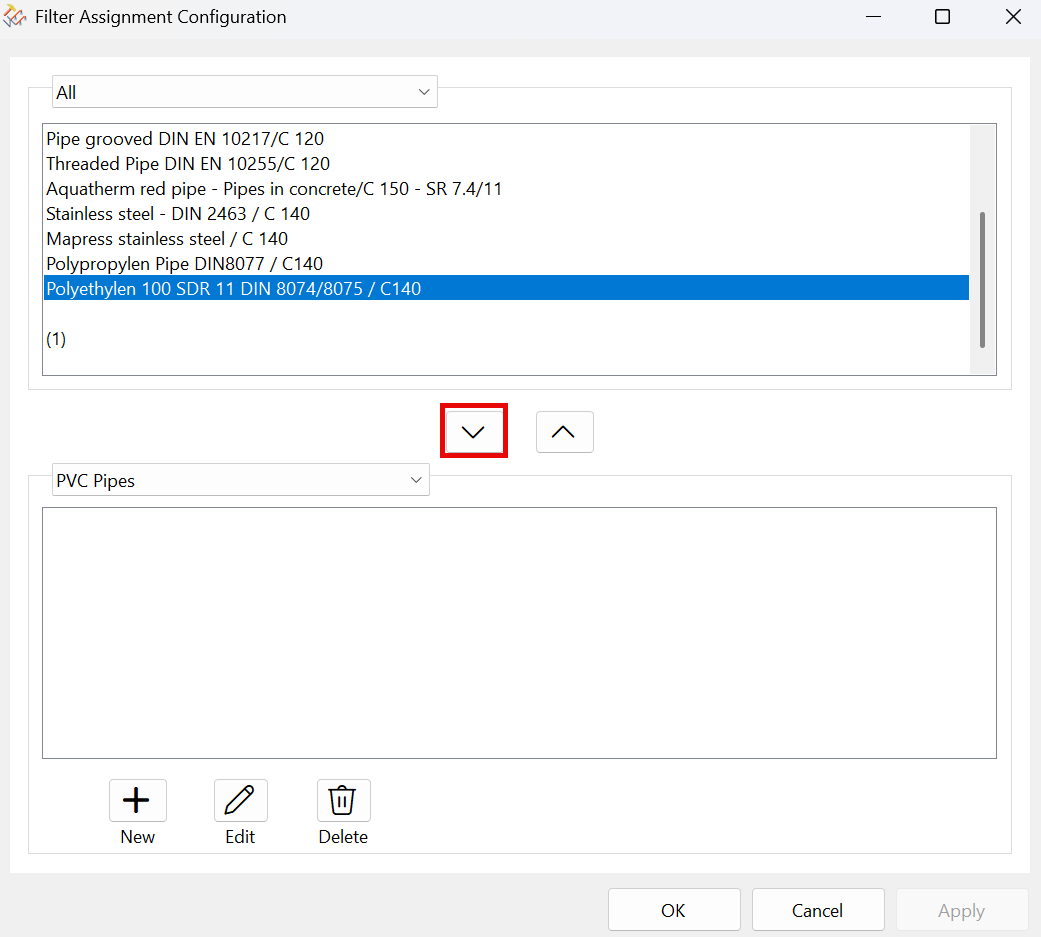
Result:
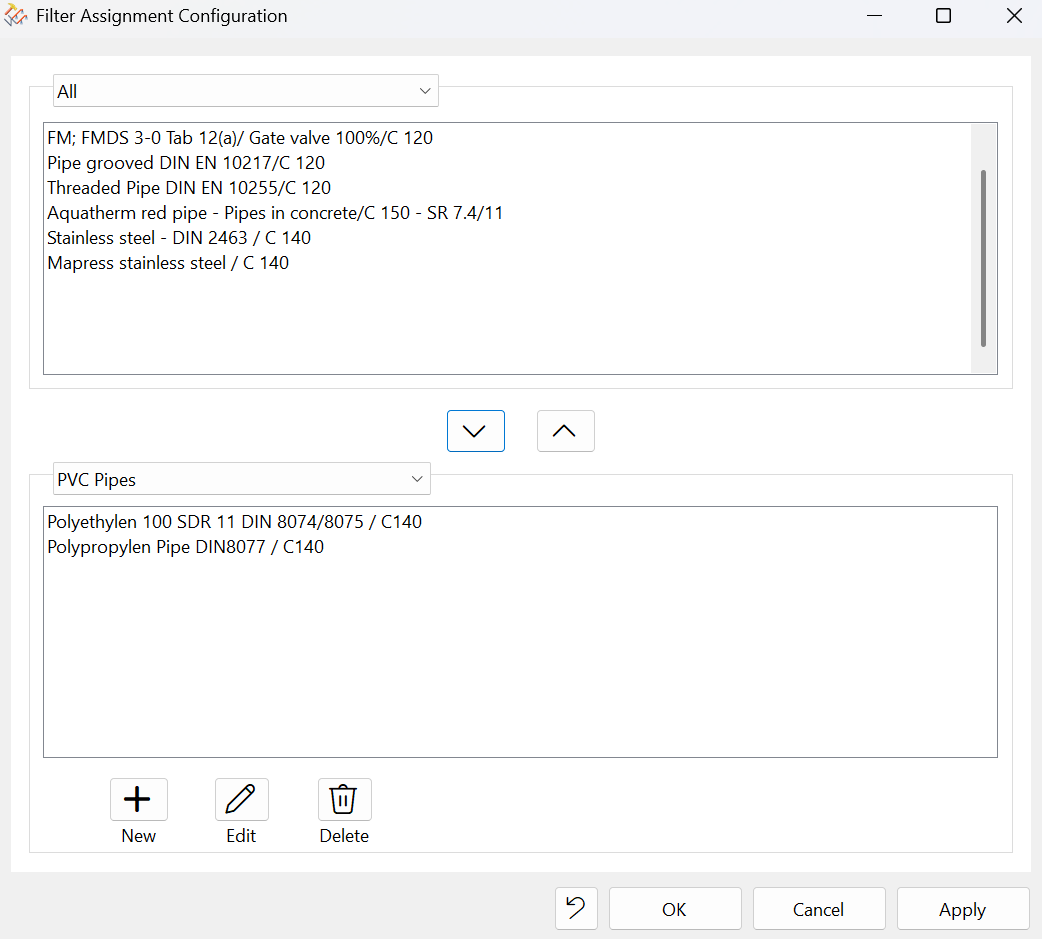
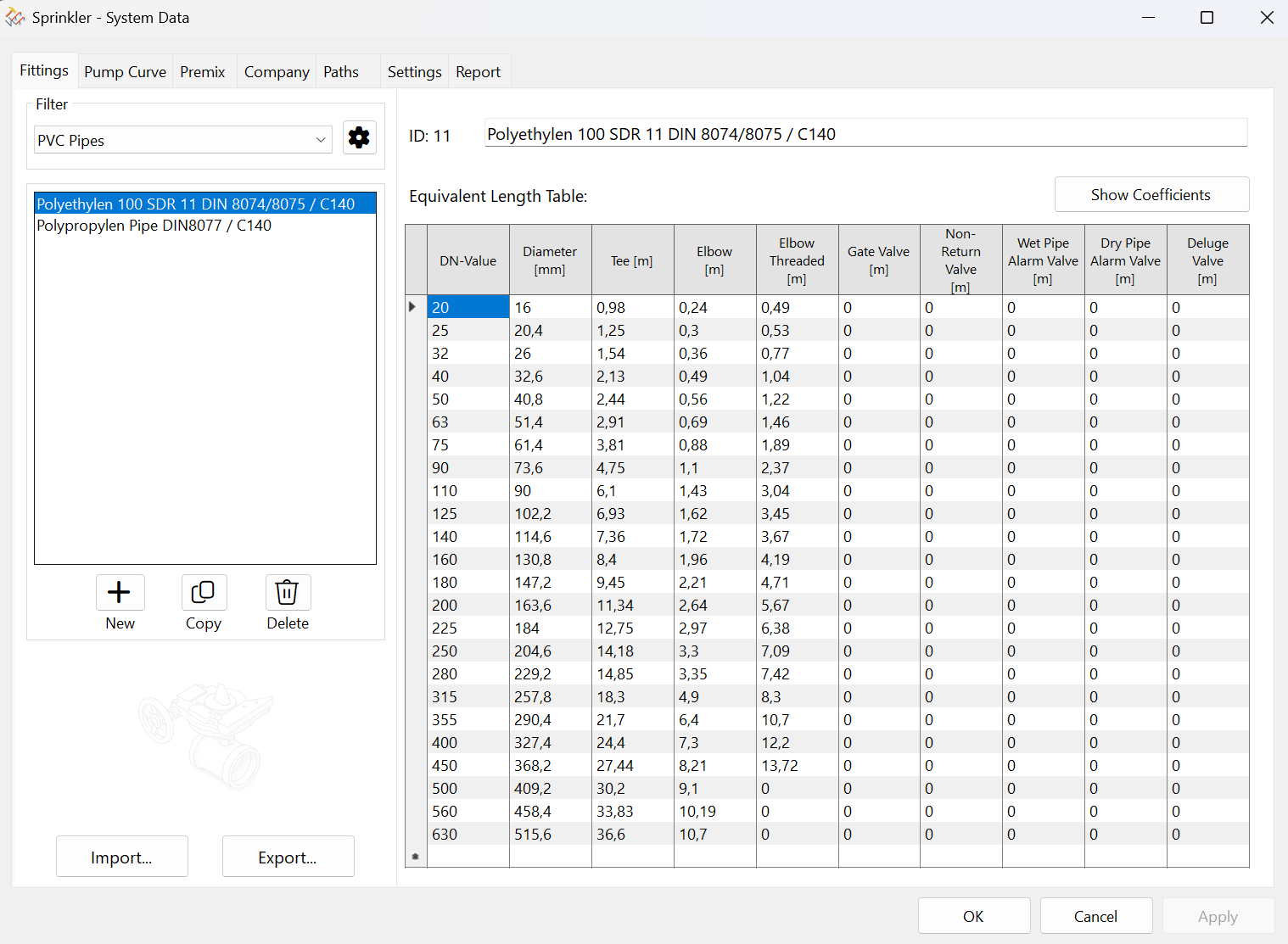
Click OK.
The Export function generates a DOS file that can be imported into another equivalent length table. Conversely, a DOS file can also be imported using the Import function.
The Search window makes it easier to locate specific tables.
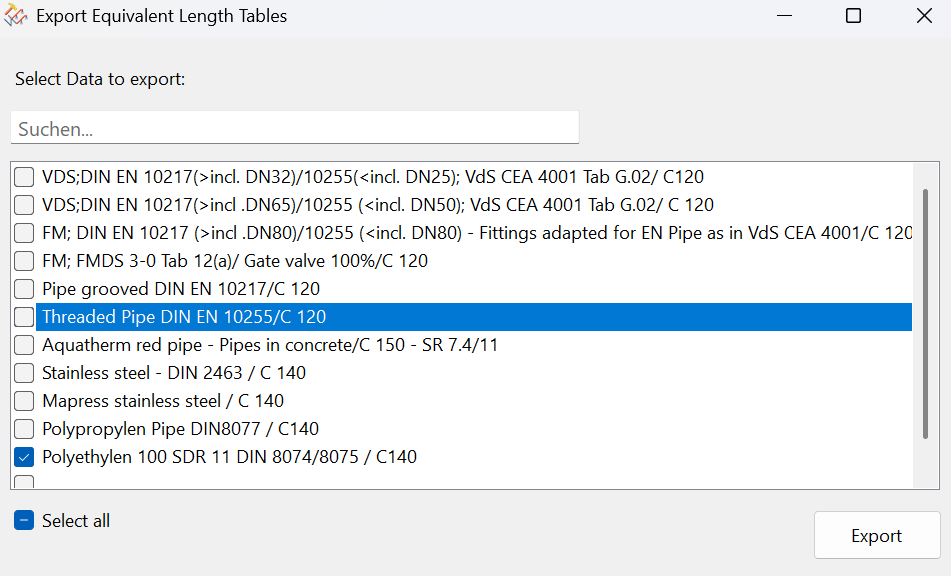
File name : Name of the table_Date.DAT
A file can be selected for import in a standard WINDOWS dialog box.