Options
This menu item contains the pre-settings for the calculation.
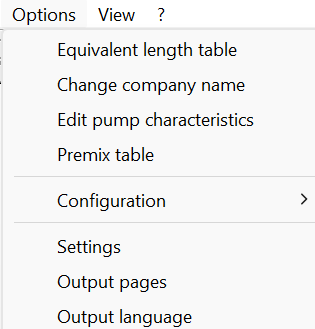
- Equivalent length table

Edit the equivalent length table as described in the section equivalent length table.
Edit the table within the calculation program. However, its not possible to perform calculations using this new table here.
To do so, return to the model in AutoCAD/BricsCAD.
- Change company name

Enter or edit the company name to be displayed in the header of the calculation results. Edit it directly here, and the change will be reflected in the report immediately.
See also “Company Name” section.
- Edit pump characteristics

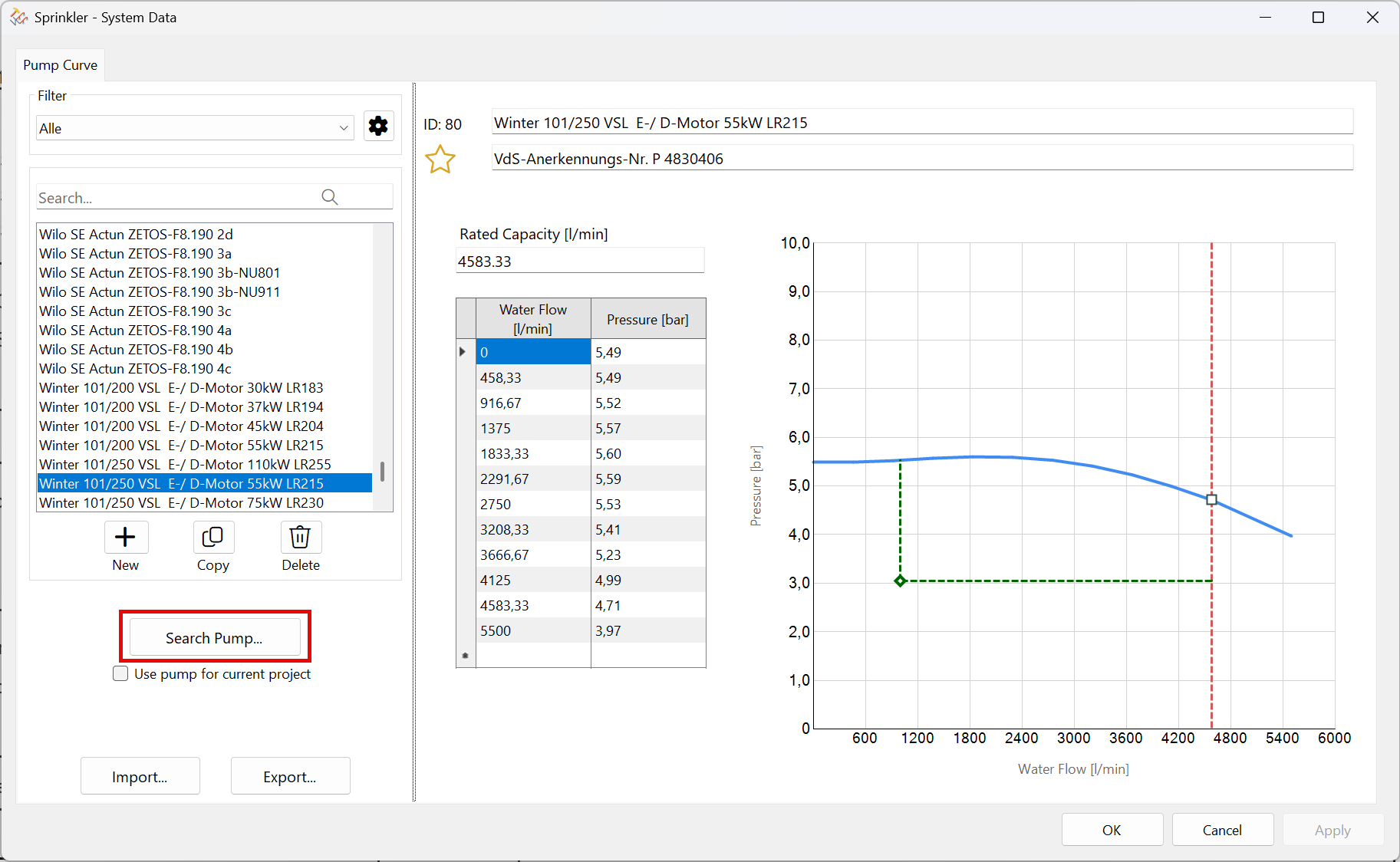
The use of pump performance curves is covered in detail in the chapter on pump characteristic curves.
Option to perform the calculation using a different pump or to edit the results in the calculation program.
The dialog box looks slightly different from the default settings in SpriCAD AutoCAD/BricsCAD.
- Search pump
Option to find a suitable pump for the current project.
Unlike the procedure described in the chapter on pump performance curves, clicking the “Search for Pump” button preselects all pumps that are suitable for this project, indicating the pressure difference between the pump and the working area. A graph is displayed.
This makes it easier to find the right pump by showing the horizontal distance to the approval limit and the vertical distance (bar) to the curve relative to the calculation result.
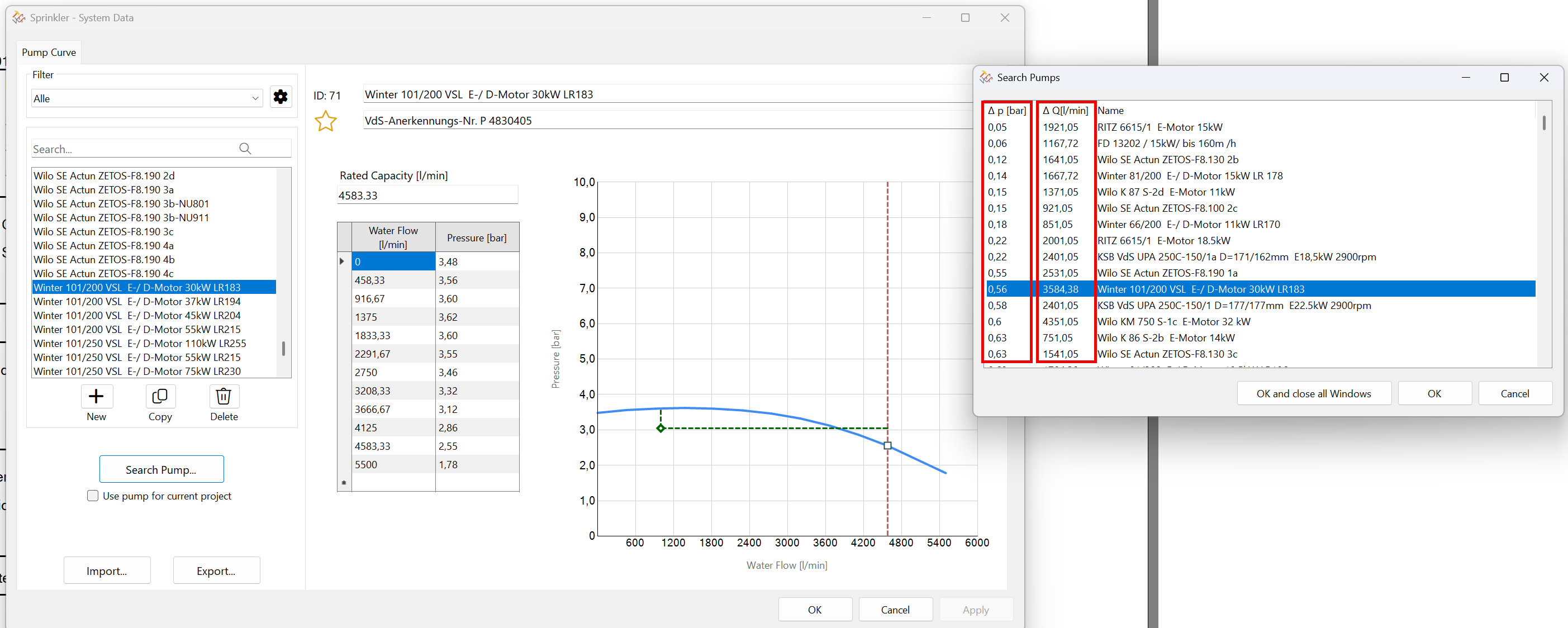
This pump would be oversized.
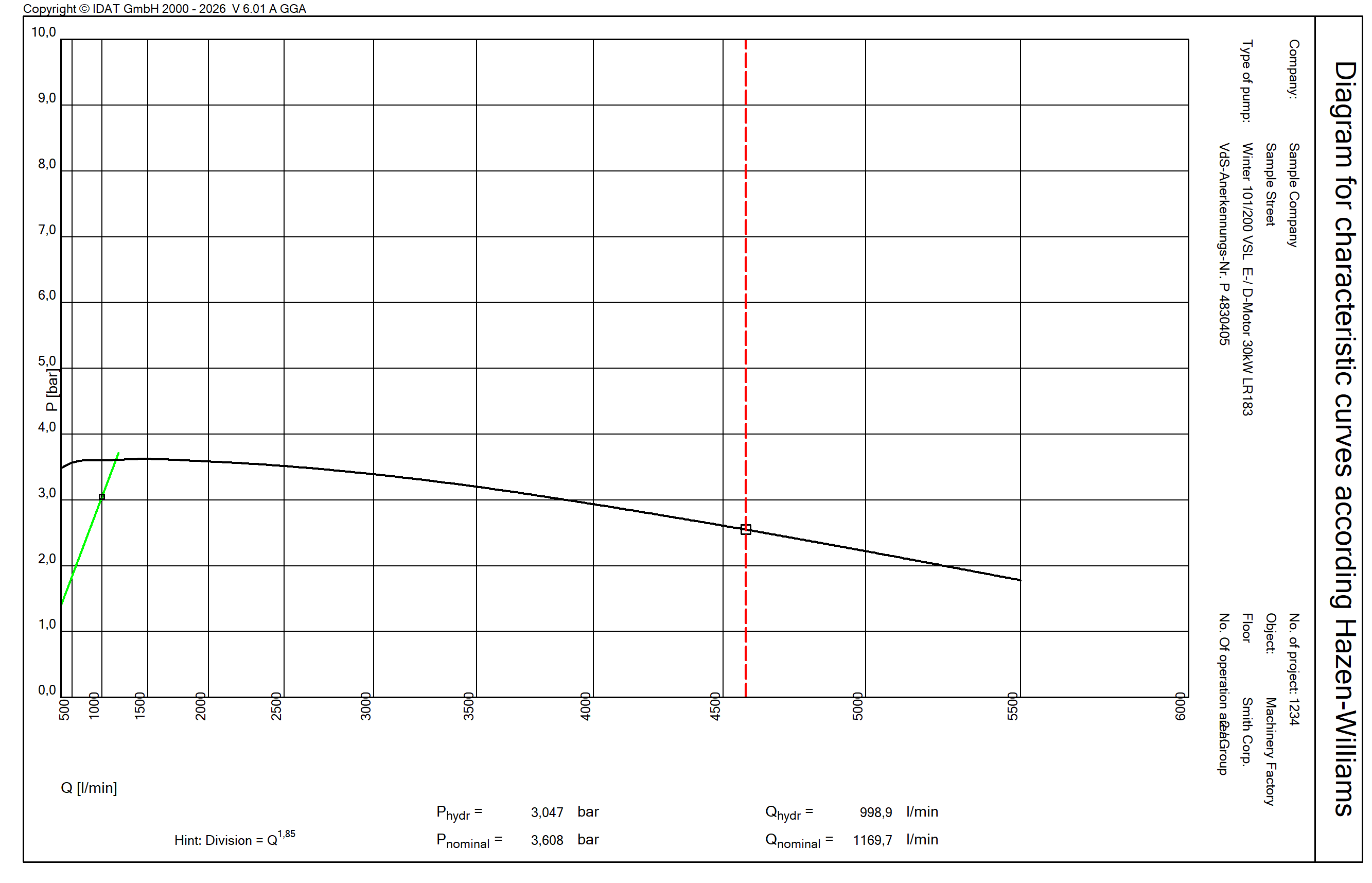
OK - Pump is selected
OK and close all windows - Pump is selected and all windows are closed
A pump can also be selected directly from the list. In this case, the following checkbox must be checked:
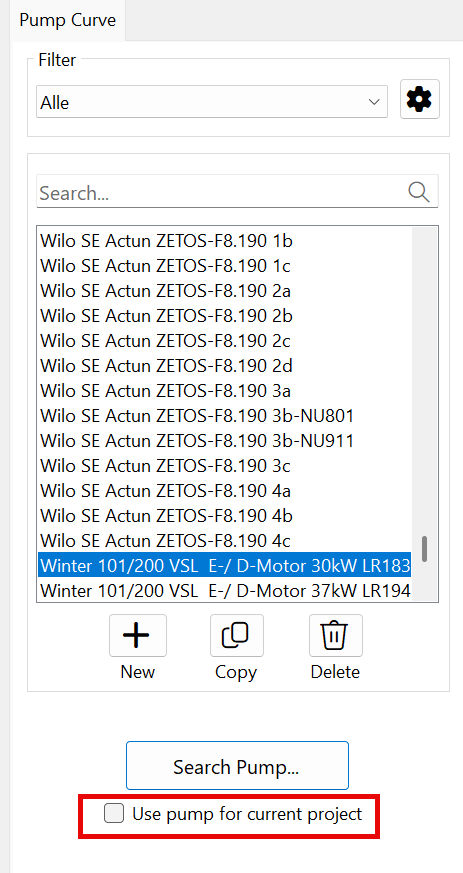
Then click Calculate.
- Configuration - Path Settings

This information is treated in the “Paths” section.
- Configuration - Export Configuration
Export your configuration from your project for use in other projects.
Select a save location and a file name. (File extension: *.cfx)
Select the configuration parameters:
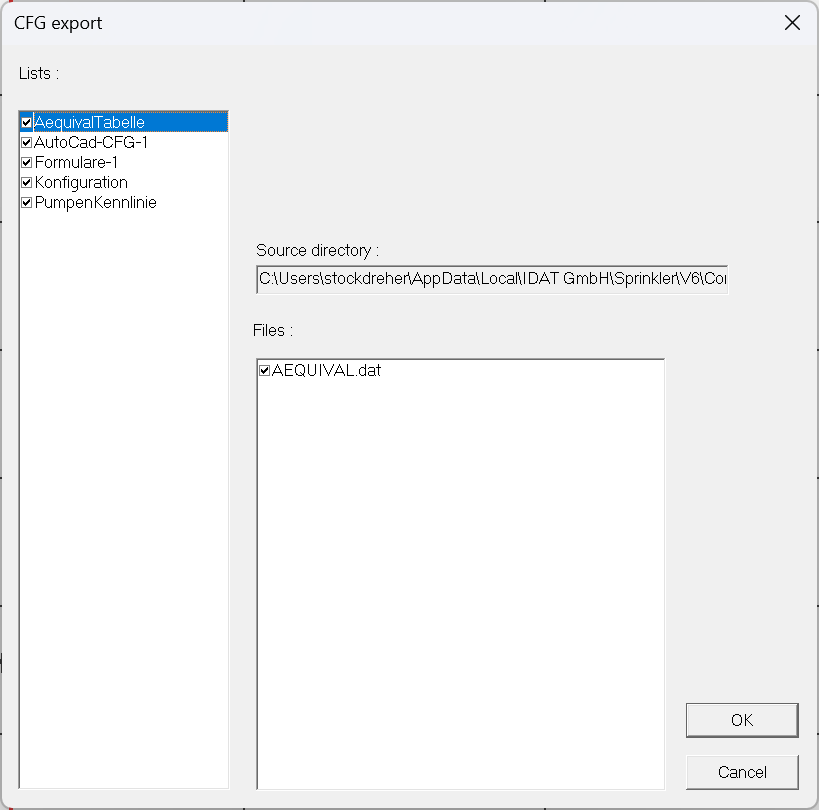
This function refers to the export of the parameter file, the equivalent length table used, the pump characteristic curve file, and the form files.
- Configuration - Import Configuration

Import the generated *.cfx configuration file (see above). Import the parameter file along with the equivalent length table, pump characteristic curve file, and form files from another project with a single click.
- Settings

This information is covered in the “Settings” chapter.
- Output pages

This information is covered in the “Report” section.
- Output language

Change the report's output language.