Sprinkler
After selecting a sprinkler, "Advanced properties" can be opened in properties or via right-click in context menu:
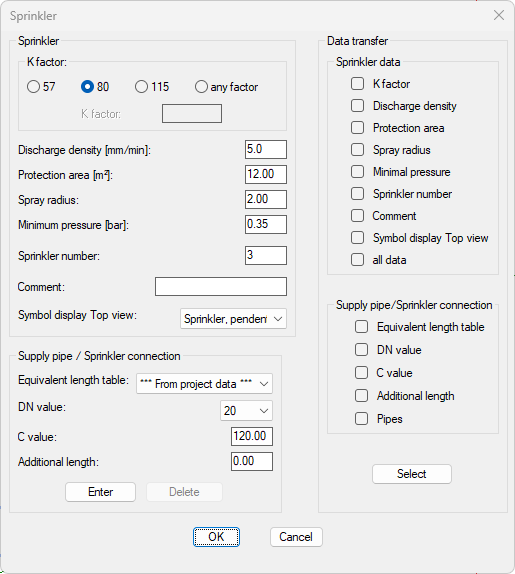
The dialog box consists of 3 sections:
- Sprinkler: Non-geometric data of the sprinklers can be set in this section::
- K Factor [l/(min*√bar)]: K Factor of the sprinkler
- Discharge Density [mm/min]: Required density in [mm/min].
- Protection Area [m2]: Protection Area in [m2].
- Spray Radius: Spray Radius covered by sprinkler
- Minimum Pressure [bar]: Required minimum pressure on sprinkler in [bar].
- Sprinkler Number: Number of sprinkler
- Comment: Description of the sprinkler for the calculation printout
- Symbol Display Top View: Symbol description - representation of the sprinkler in the top view (Defined in "Symbol.cfg")
- Supply Pipe/ Sprinkler Connection: In this section, the sprinkler supply pipe (the connecting pipes from the sprinkler position to the sprinkler insertion point on the branch pipe) and the data of the supply pipe can be entered:
- Equivalent Length Table: From Project Data or individually
- DN Value: Diameter of the pipe
- C Value: C Value of the pipe
- Additional Length: Is added to the actual length as equivalent length for special components (e.g. connection with flex hose).
- Data Transfer: The following data of a specific sprinkler can be transferred (completely or partially) to other sprinklers, after checking the check-boxes:
- K Factor
- Discharge Density
- Protection Area
- Spray Radius
- Minimum Pressure
- Sprinkler Number
- Comment
- Symbol Display Top View
- All Data
The following data of the pipes of the Sprinkler Supply Pipe can be applied:
- DN Value
- C Value
- Additional Length
- Pipes (of Sprinkler Supply Pipe)
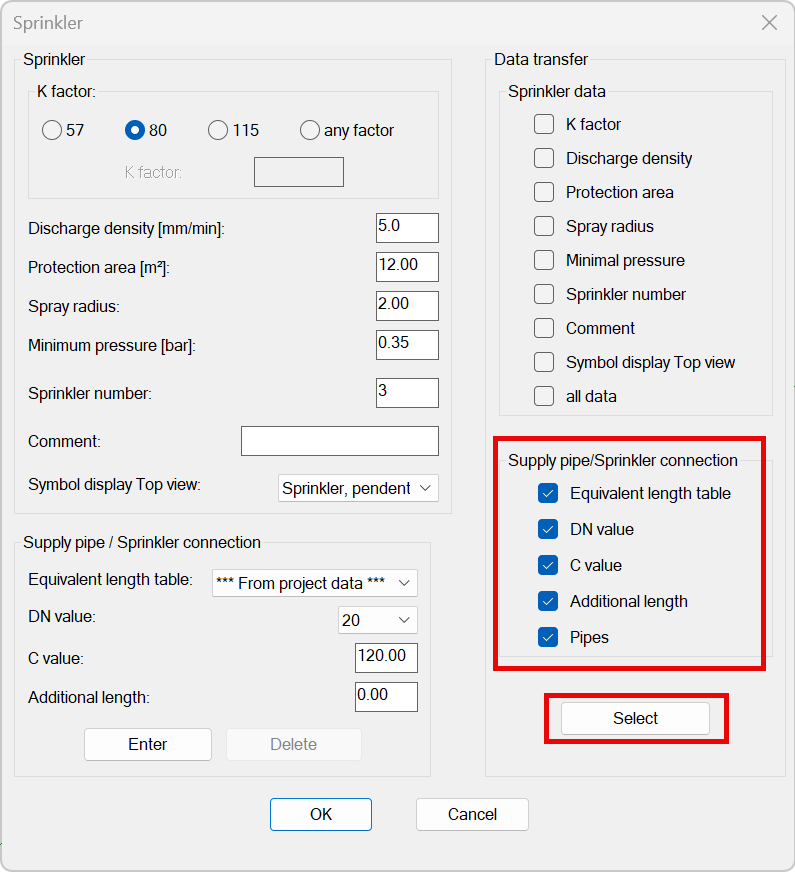
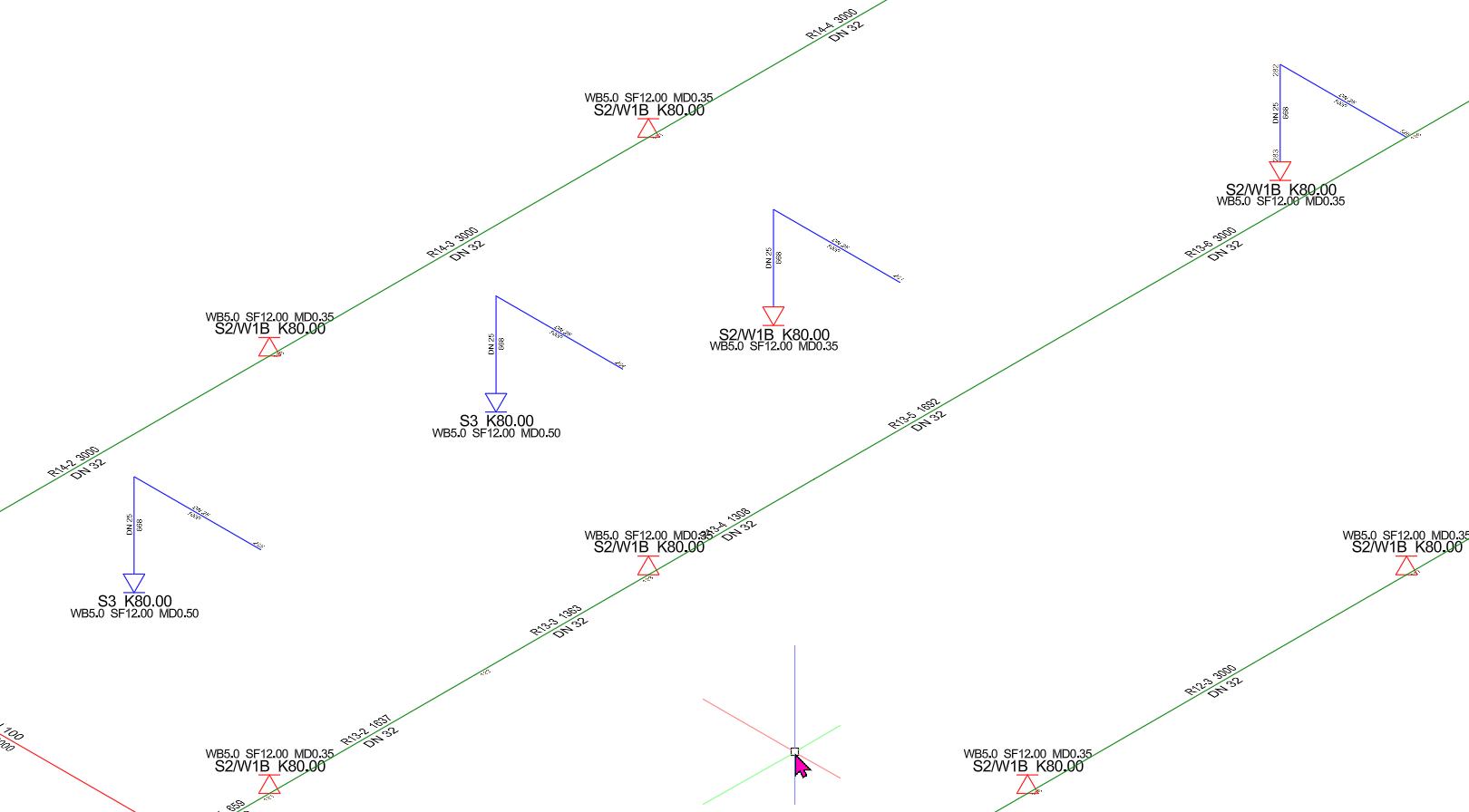
Selecting the option "Data transfer sprinkler supply pipe" initiates an adaption to the branch pipes based on the data of the currently selected sprinkler.
Example:
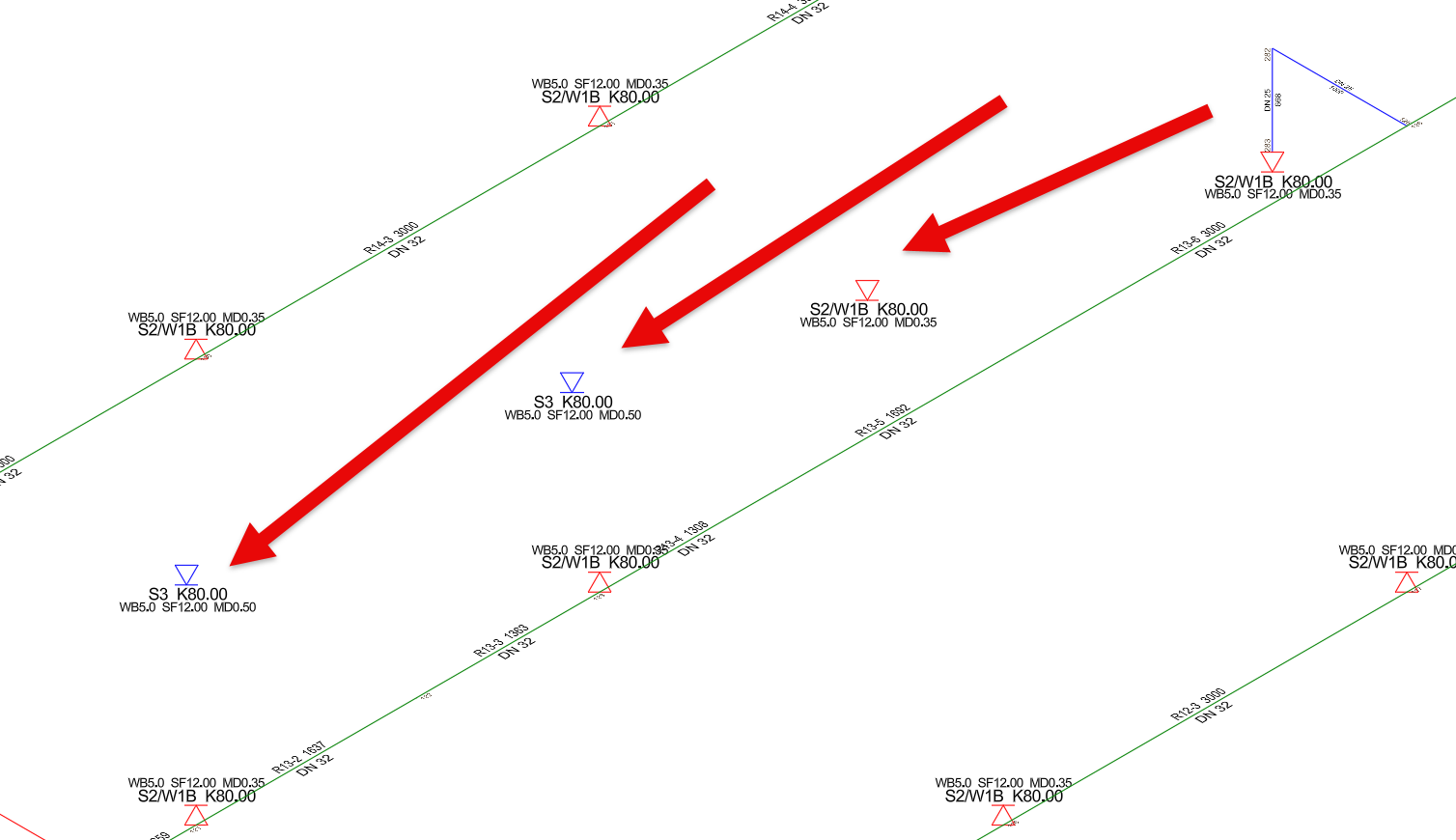
Result:
By clicking once, a value is registered for "Data transfer" (a check mark appears in the box), by clicking again, the value is deselected (box is empty again).
Clicking on "Select" triggers the transfer of the data (selected at this point). The dialog box is minimized and the user is asked to select the data of the sprinklers to be replaced.
The selection is made according to the procedure described in Select/ Modify components.
After the selection is completed, the data will be transferred to the selected elements and the sprinkler dialog box will be displayed again.
If the dialog box is exited with Cancel, the modification of the sprinkler is terminated without applying the changes.
After leaving the dialog box with OK, the changed data is applied.
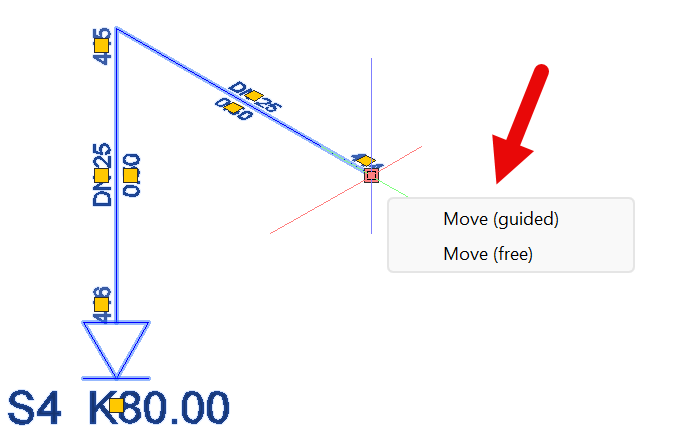
Stretching or Moving (AutoCAD) is connecting the Supply Pipe to any desired Branch Pipe.
Related topics: