Enter sprinklers
Icon:

One or more Sprinklers can be entered.
After executing this command, the following input options appear in properties:
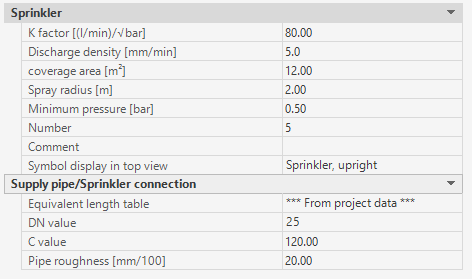
Each Sprinkler is assigned the predefined properties.
During the command sequence, the data can be changed at any time.(*)
After clicking on the icon, the following dialog appears in the command line:

The following options appear:
- U [Undo]: Undo last sprinkler input (within this command).
Immediately after initiating the sprinkler input command, this option has no effect.
With this option, each last step of the sprinkler input is undone.
The Undo option can be repeated until the condition at the beginning of the sprinkler input is restored.
After reaching this initial state, the option is no longer effective.
- B [Branch pipe]: Input of a sprinkler, starting with the insertion position of the sprinkler on the branch pipe.
First, the branch pipe on which the sprinkler is to be inserted must be selected.

The point of which further entries are made is determined at the same time as the branch pipe is selected.
If the selected point (for selecting the branch pipe) is closer to the starting point of the branch pipe, further entries refer to the starting point,
otherwise to the end point of the branch pipe.
After that, the distance of the sprinkler insertion point from the start point

or from the end point of the branch pipe

is requested.
The insertion position of the sprinkler is located at the branch pipe and at the distance assigned from the start or end point of the branch pipe.
If desired, the sprinkler can also be inserted several times on this branch pipe.

If more than one sprinkler is inserted, the spacing of the sprinklers is also entered

The input of the distance is only accepted if all sprinklers fit on the branch pipe, i.e. the following rule is applicant:
Distance from starting point + (number of sprinklers - 1) x distance of sprinklers ≤ length of branch pipe.
- D [Distance] : Input of one or more sprinklers, starting with the sprinkler position.
The position of the sprinkler is entered as a relative point (Entering points).
After clicking on the icon, the following dialog appears in the command line:

The number of required sprinklers can be entered or the distance from the reference point for the first sprinkler can be defined.
If using distance, x-, y- and z-differences need to be specified next.
If more than one sprinkler is entered, the distance between the sprinklers must be specified as well:

Next, the direction of insertion (along branch pipe/ across drawing) of additional sprinklers (Entering a direction) has to be selected:

At last, the direction of the sprinklers (Entering a direction) has to be selected:

How to enter a sprinkler supply pipe is described in chapter Enter sprinkler supply pipe.
After drawing the sprinkler(s), the prompt will reappear with the option to enter additional sprinklers.
Sprinkler input can be terminated by pressing the <RET> key.
(*)
If the value of the CAD system variables COMMANDPROPERTIES equals 0, nothing is displayed in the properties palette.
Instead the properties dialog of sprinklers is displayed once the command is executed.
Related topics:
Sprinklers - properties dialog