Standard
Function: Control labels in the model and for the filters.
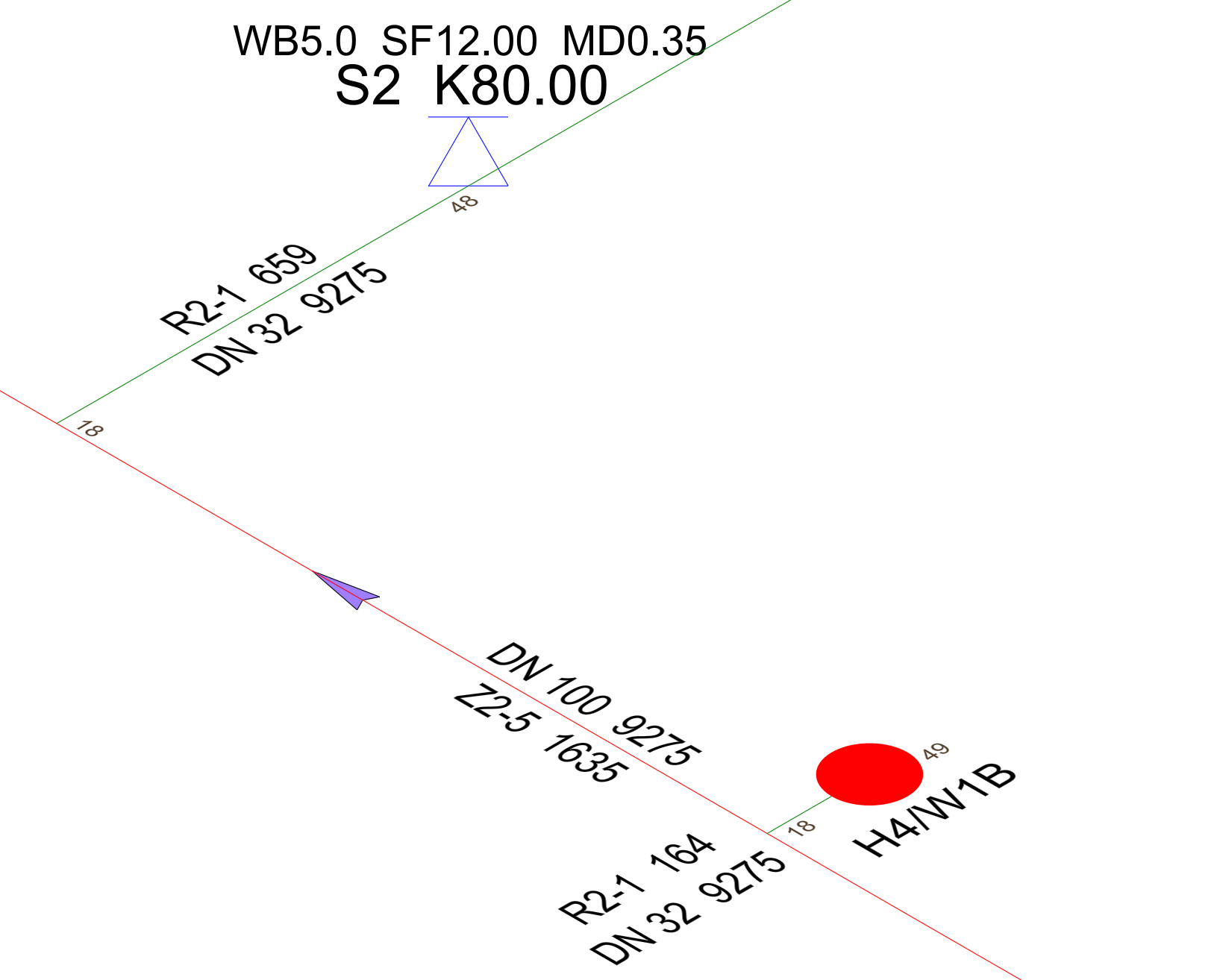
Example - Labeling sprinklers:
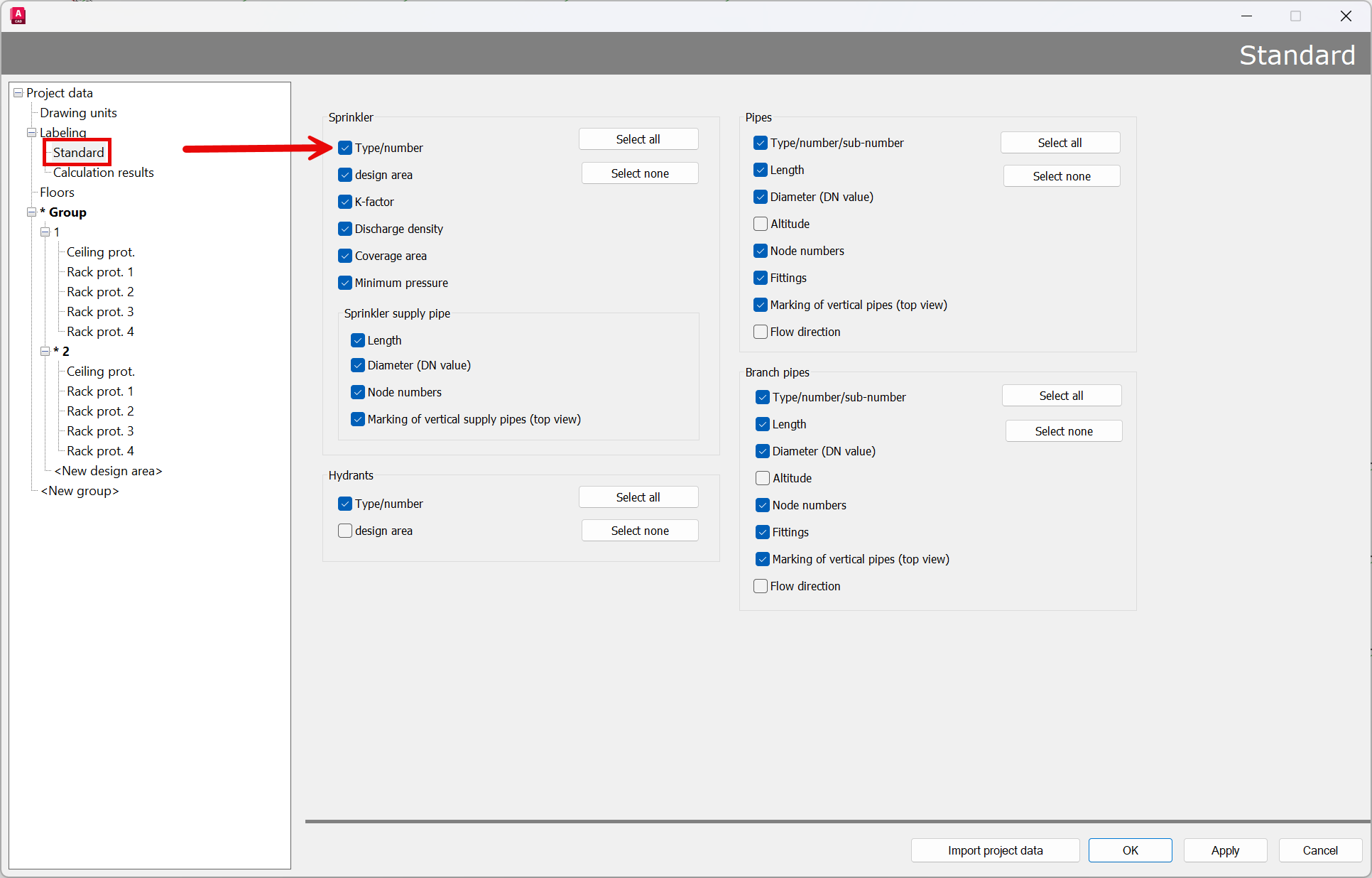
Pipes, branch pipes, and sprinklers can be labeled as follows:
Each label can be turned on or off as desired.
If a checkbox is selected, the corresponding elements (i.e., pipes, branch pipes, or sprinklers) are labeled with the text.
If a checkbox is not selected, the corresponding label will not appear on elements of that type.
Clicking the “Coverage Area” field displays the number of the active area at sprinkler.
If the dialog box is closed with OK, the changes are applied, and all elements are labeled accordingly.
If the dialog box is closed with Cancel, any changes made have no effect, and the labeling of pipes, branch pipes, and sprinklers remains as it was before the dialog box was opened.
Note: User-defined fittings can also be displayed or hidden
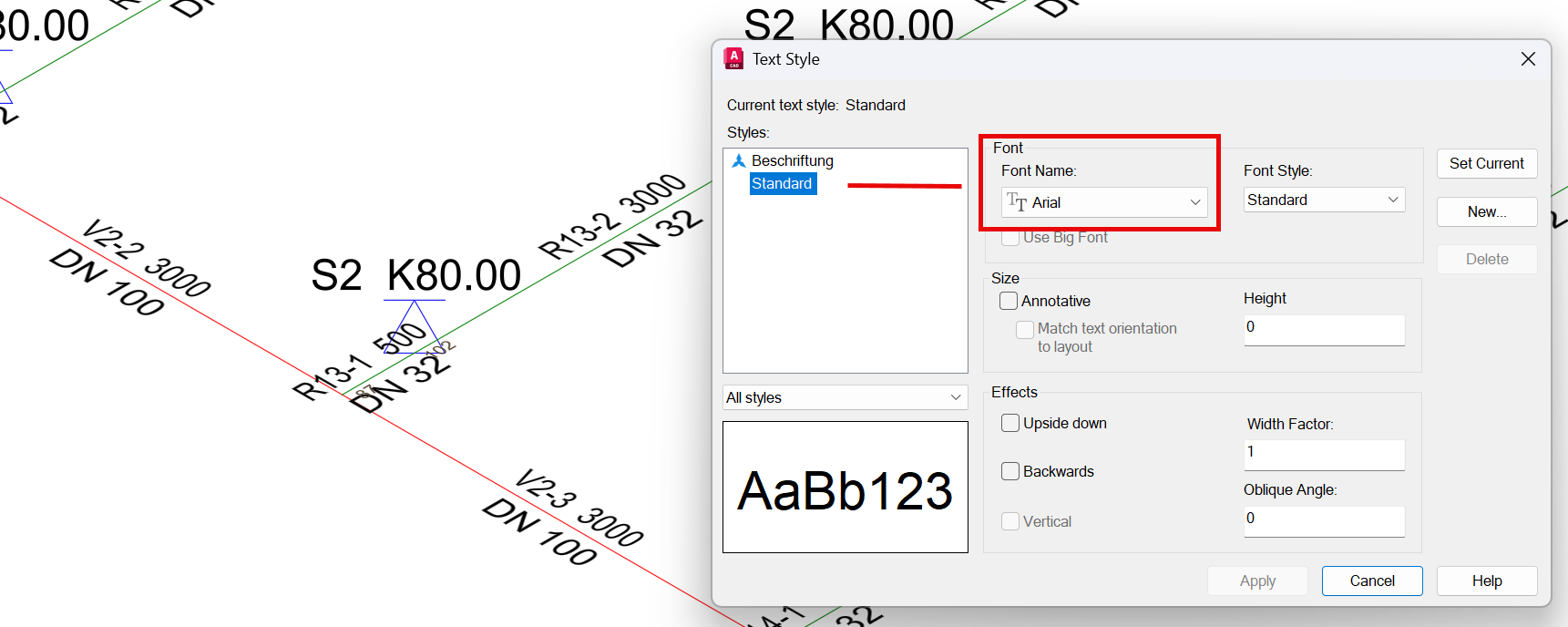
The font can also be selected as desired. The labeling is controlled by the “Standard” font style currently set in AutoCAD/BricsCAD.
Format - Text Style: The following dialog box appears in AutoCAD:
Arial
Cascadia Mono
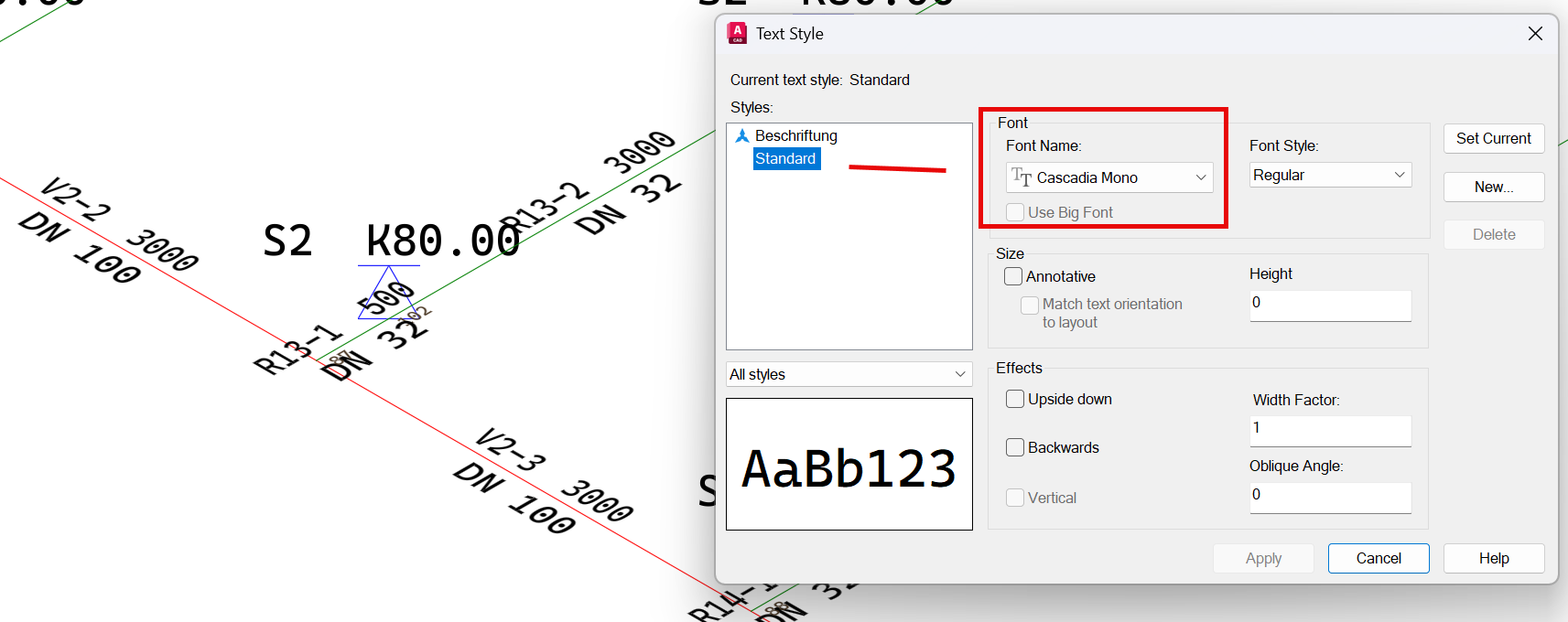
Now assign the desired font to the current text style, or create a new text style and set it as the current text style, then click Apply.
The changes will be applied to the drawing immediately after closing the dialog box.
In BricsCAD, this can be done using the Text Styles dialog box.
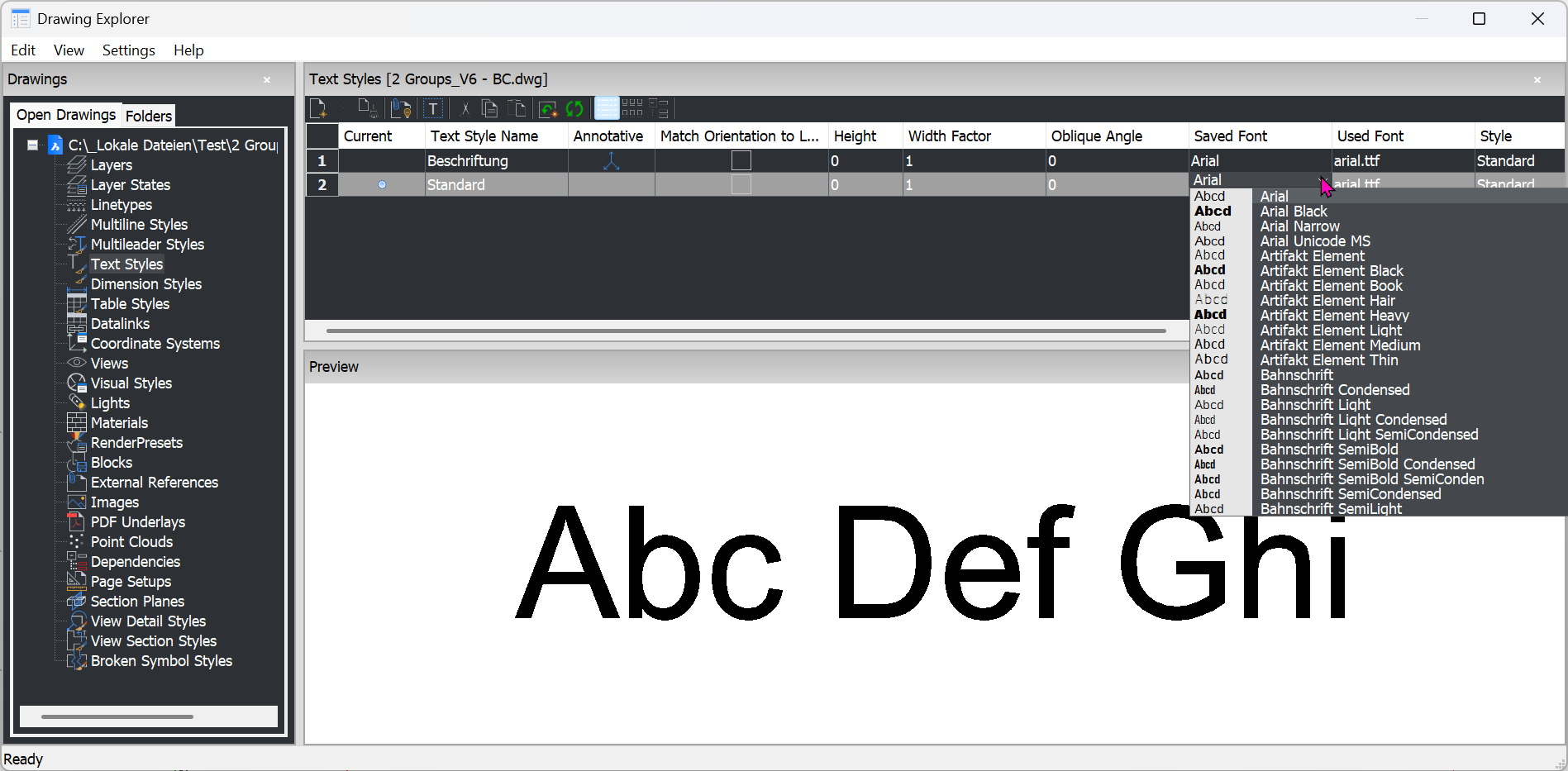
Change the font and close the dialog box. Changes will be saved.
.