Toolbar output window


This menu item includes the default settings for the view.
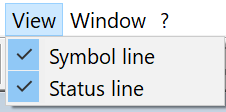
Function: Switching the toolbar/status bar on and off.
Click on the check mark and the toolbar/status bar is switched on or off.

The toolbar contains the functions from the roll-up menus and a few additional functions.
 - Look Print
Function: Export a section of the calculation results as a BMP file.
 Funktion: Zoom switch on/off
Click on the button once. It will then appear as follows: 
Zoom is now activated and you can use the cross that appears to define a zoom window. This area will now be zoomed in on.
This can be done multiple times.
The Restore button is then needed in combination with this function: 
It ensures that the old zoom section, for example the full view, is restored.
After you have set the desired zoom, click on the magnifying glass again to finish the command.

The view is displayed so, that it is fully displayed on the screen.

This will output the project's form in its original size (paper size) on the screen.

If you use the scroll bar on the right or bottom of the screen, the graphic may not be drawn accurately during the zoom function.
Use this menu item to redraw the selected graphic section in the current zoom mode.

After calling up the function, the following window appears:
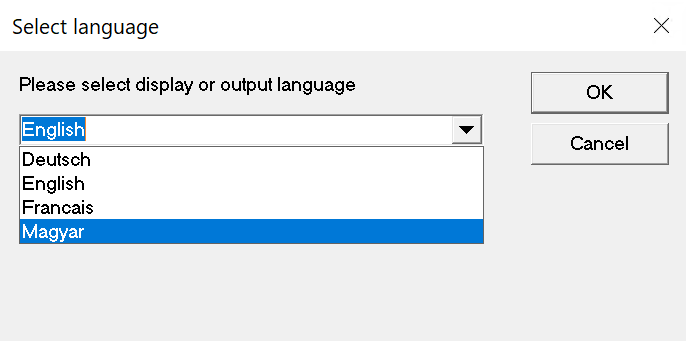
Select your language and click OK.
The language will change just in time.
Depending on whether the user is on the first page, the last page or somewhere in between, the following buttons will or will not be visible.
 First page: Key combination "STRG + Pos 1"
 Previous page: Key combination "STRG + Bild Oben"
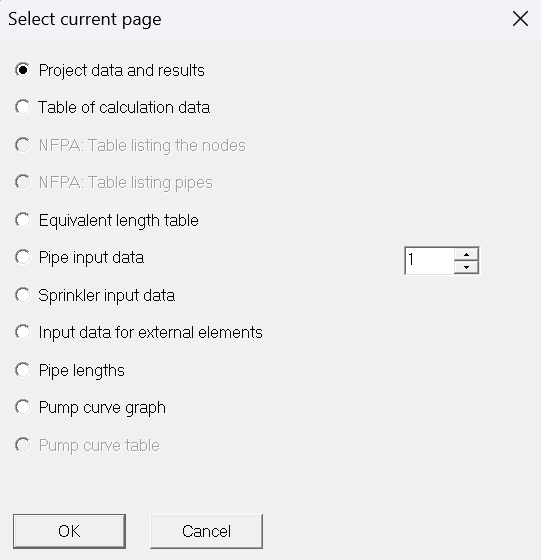
 Select a specific page according to the preset output pages. A dialog box appears.
Select the page you want to see directly..Output pages
 Next page: Key combination “CTRL + Image down”
 Last page: Key combination “CTRL + End”
 Function: Search for node numbers in the calculation document.
Click on the symbol. The following dialog appears:
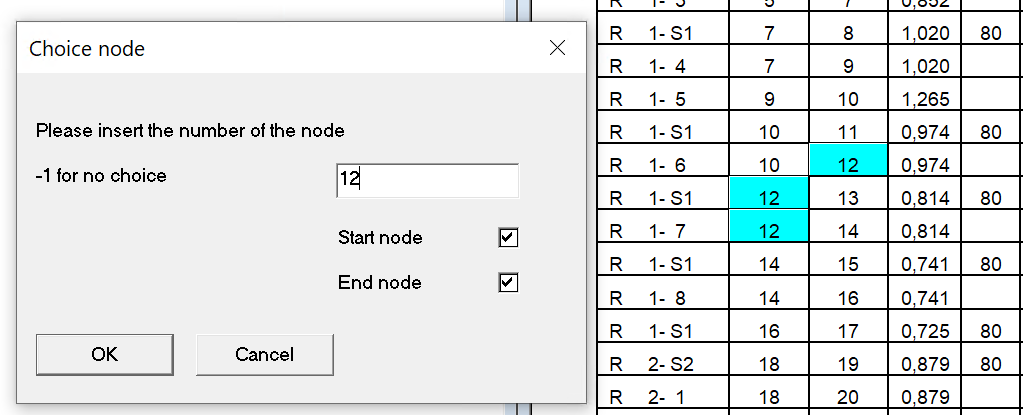
The node numbers are colored light blue.
If the number 12 now appears several times in the document, these arrows are colored blue in the toolbar and thus activated:


Function: Recalculation of the hydraulic calculation within the calculation program.
Calling up this menu item is always useful if changes have been made to the input data, e.g. a different pump, and the user would like to view the result.