Installation
The latest software can be downloaded on our homepage www.idat.de.
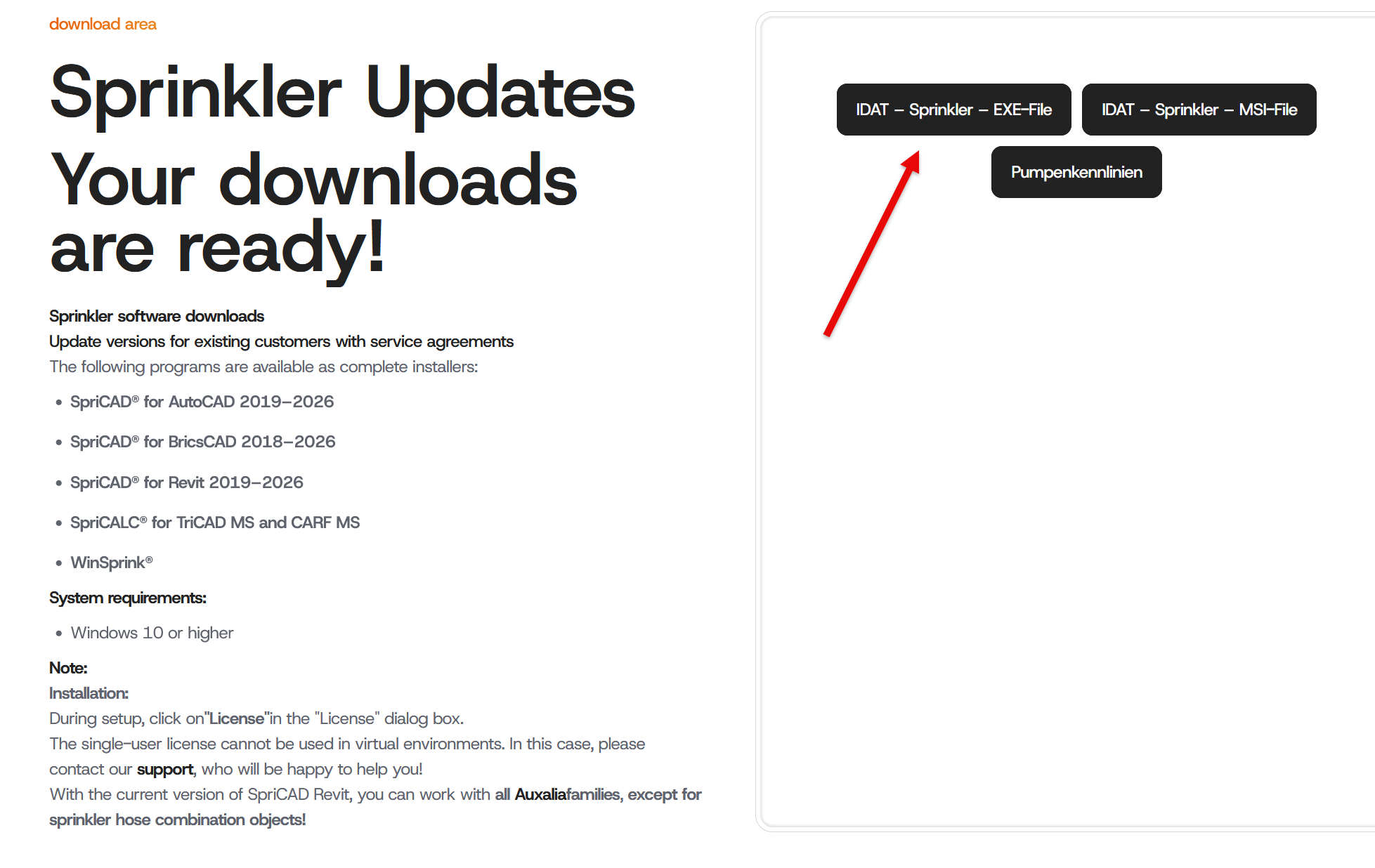
(See also License.)
The file must be extracted after the download and secured locally on the computer.
Double-click on the *.exe file.
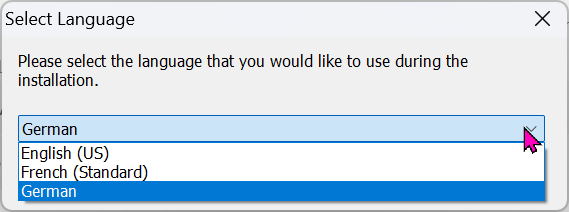
Select language in the first dialogue:
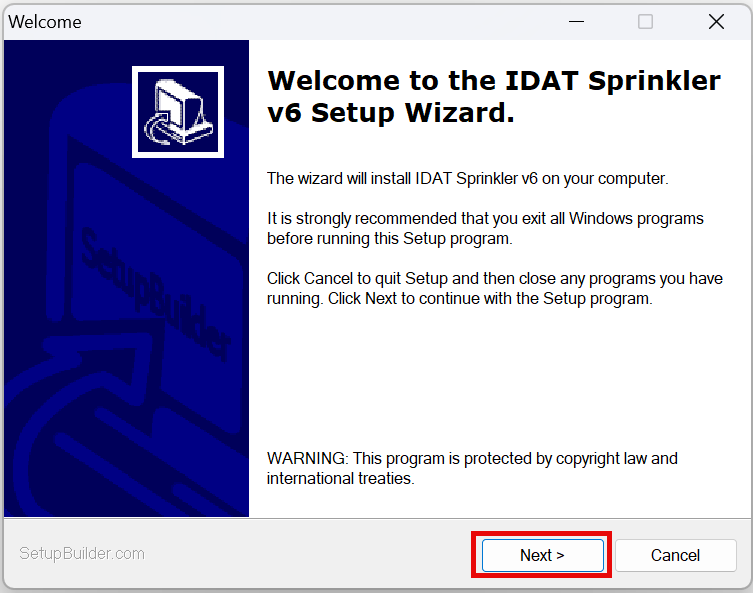
Starting the installation:
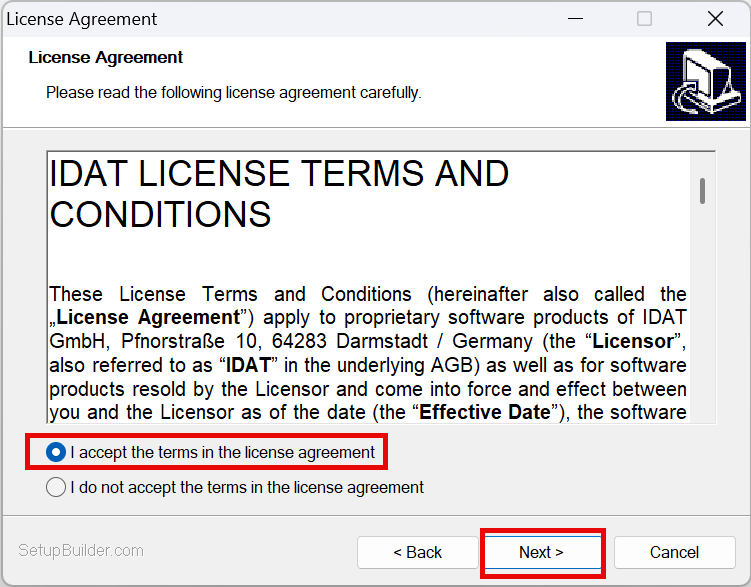
Confirmation of license agreement:
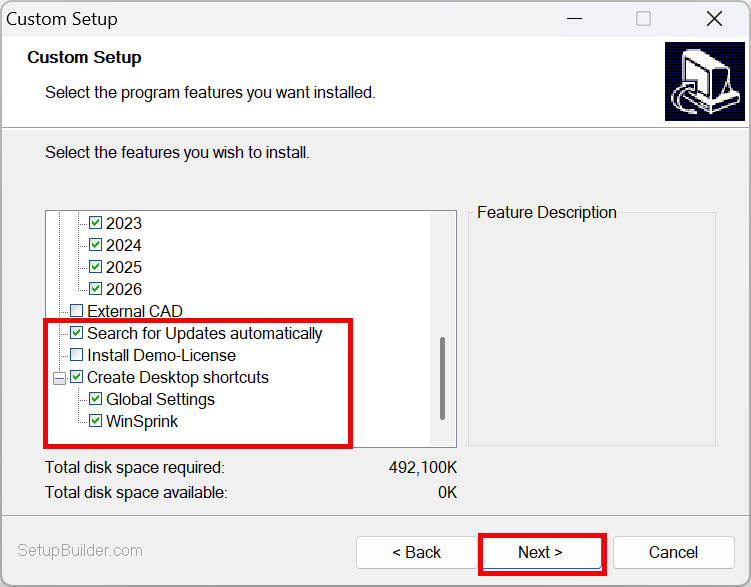
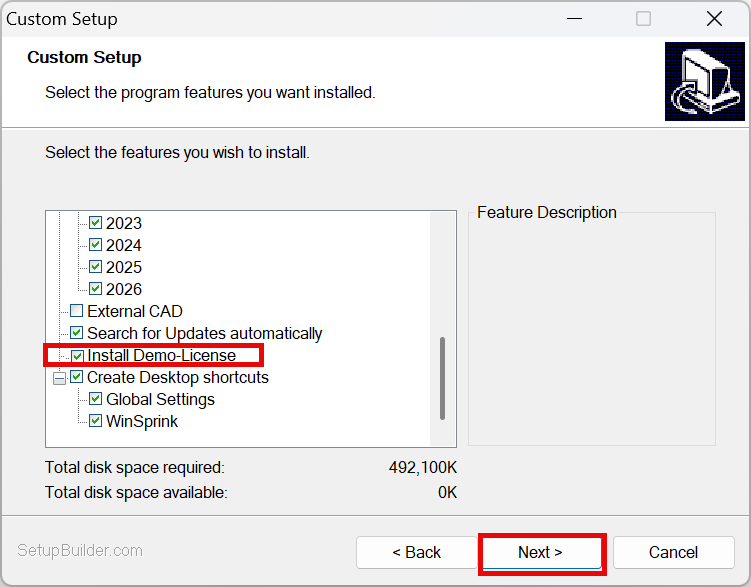
Define program parts:
This is a complete installer for all IDAT sprinkler programs. Therefore, all programs are listed. The IDAT license determines which programs can be used.
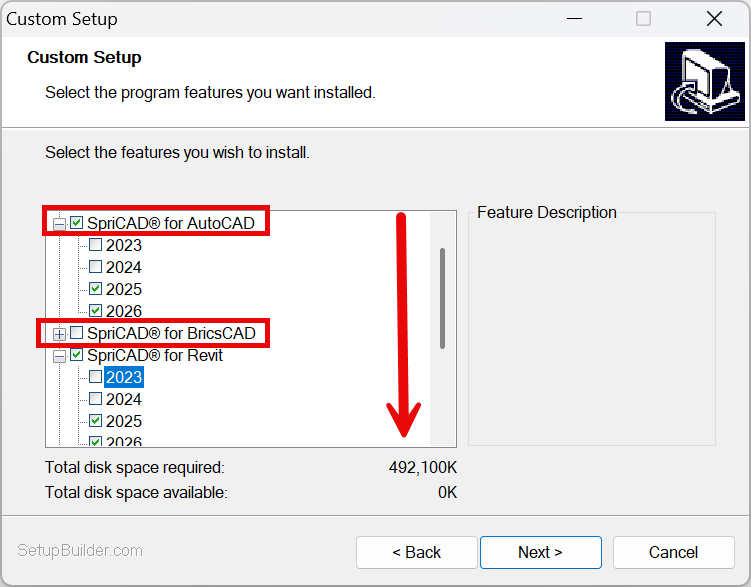
For installations with a license, leave the “Install Demo-License” checkbox unchecked!

Enable automatic Update checks and link to Global Settings as needed.
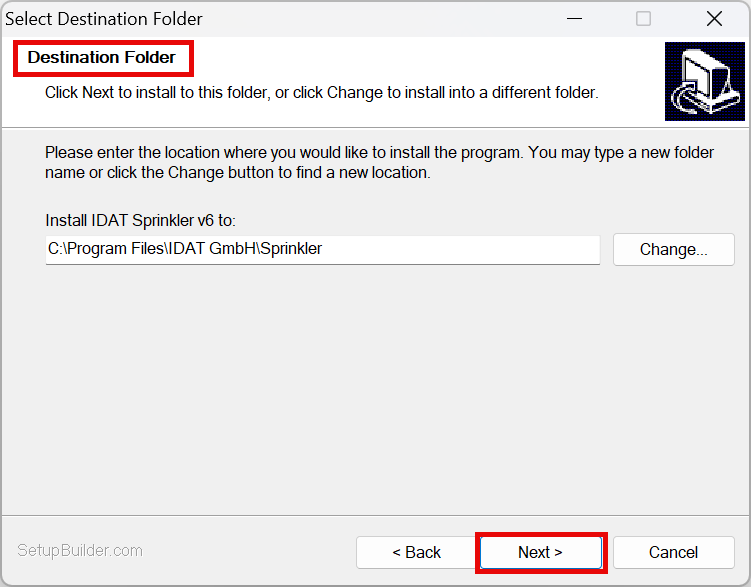
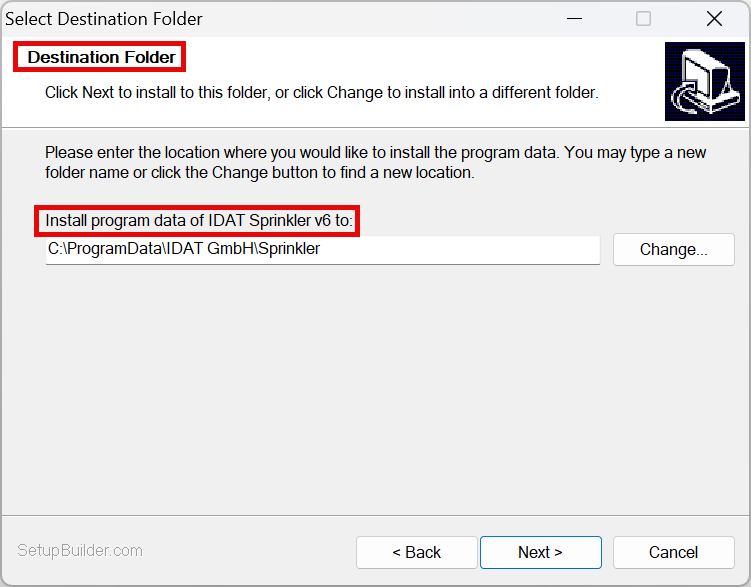
Select the destination directory (installation and program data) (default recommended):
Installation is starting.
Codemeter User Runtime for license management will be installed automatically.
When installing the demo license, make sure to select “Install Demo-License.”
Note:
The following section only applies to troubleshooting.
To work with SpriCAD® in AutoCAD, the directories must be entered as follows, if they have not already been added automatically during the installation.
Paths can also be added manually by opening "Options" (command: OPTIONS or _OPTIONS) and selecting "Support File Search Path" in tab "Files". (Installation directory of SpriCalc and directory of SpriCAD see below).
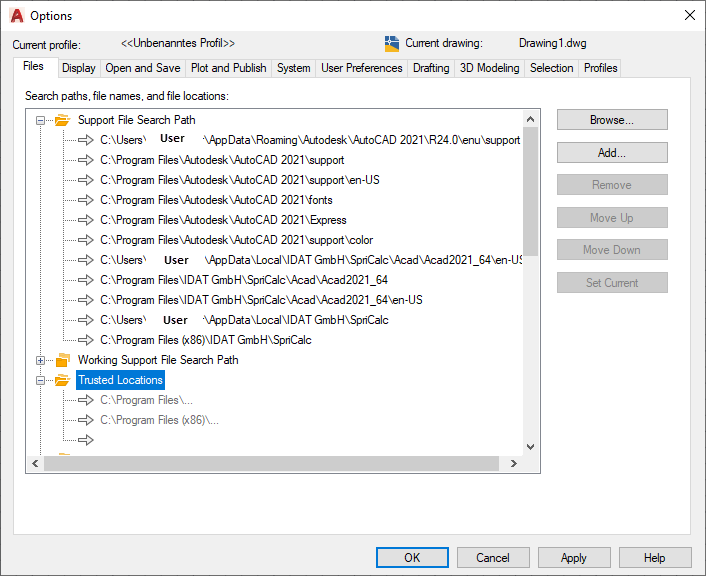
After changing anything please quit AutoCAD/BricsCAD and restart it again.
The SpriCAD® Ribbon tab and the SpriCAD® Toolbox should appear.
If not, the command MENULOAD or _MENULOAD has to be executed.
The SpriCAD installation directory has to be selected by clicking on "Browse":
C:\Users\Username\AppData\Local\IDAT GmbH\SpriCalc\Acad\Acad2021_64\en-US
After selecting and opening the file SpriCAD.cuix, the file has to be loaded manually and SPRICAD appears in "Loaded Customization Groups".
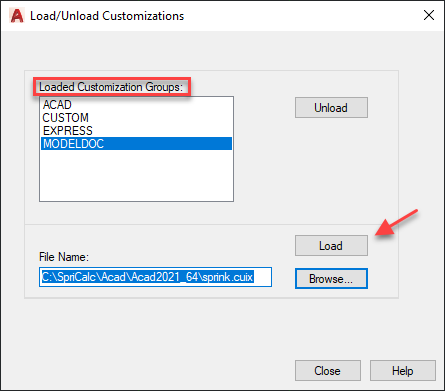
After exiting the dialog by "Close", the SpriCAD® ribbon tab and the SpriCAD® toolbox will appear.
Both tools, the ribbon or the toolbox, contain identical commands.