Customize text properties
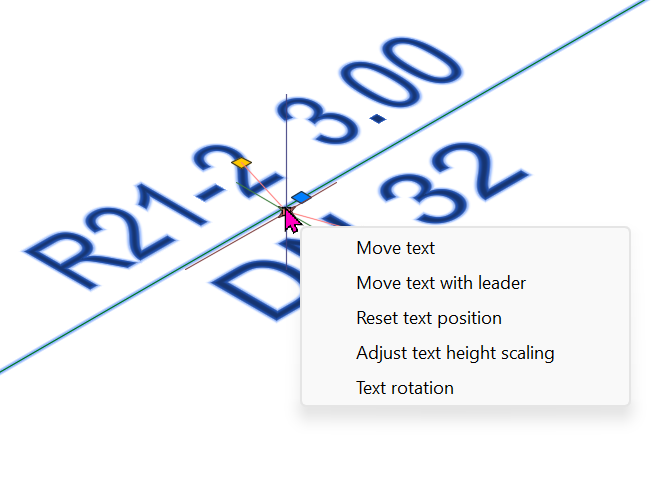
If a labeled object is selected, such as a sprinkler or a pipe, a handle point is displayed for each text (in the default view).
When moving the mouse over this handle point (in BricsCAD, the handle point has to be clicked on to select it), the following context menu appears:
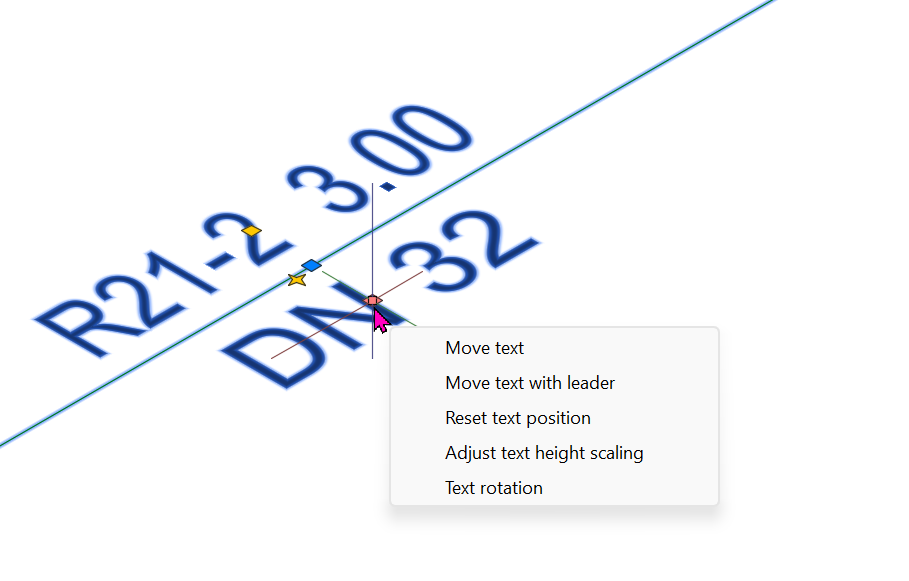
The individual menu items have the following meanings:
- Move Text
This menu item allows you to move the text.
- Move Text with Leader
The text can be moved, and a guide line is also added to the insertion point
- Reset Text Position
The text is displayed again at its original default insertion position, without a guide line.
- Adjust Text Height Scaling
This allows you to adjust the text height of individual texts. The following prompt appears in the CAD system dialog box:
Enter text height scaling factor <1.00>:
- Text Rotation
This allows you to rotate the text relative to the object. The following prompt appears in the dialog box:
Enter text rotation <0.00>:
Clicking the star icon provides the same functions but applies to both texts simultaneously.